
Track Looker Studio Report Usage with GA4: The Complete Implementation Guide
Have you ever spent hours crafting the perfect Looker Studio dashboard only to wonder if anyone is actually looking at it? Whether you're creating reports for clients, stakeholders, or as lead magnets, understanding how people interact with your dashboards is crucial for optimization and proving ROI.
In this comprehensive guide, I'll walk you through the process of implementing and leveraging Google Analytics 4 to track your Looker Studio report usage. By the end, you'll have all the tools you need to answer that burning question: "Are they really using it?"
Why Track Your Looker Studio Reports?
Before diving into the technical implementation, let's understand why tracking your reports is so valuable:
Validate your investment of time and resources in report creation
Identify your most valuable pages and visualizations
Optimize for actual user behavior rather than assumptions
Prove value to clients or stakeholders with concrete usage data
Understand if users are accessing via mobile (and if you should optimize for smaller screens)
The beauty of connecting GA4 to your Looker Studio reports is that you get anonymous tracking data without intruding on your viewers' privacy.
Setting Up GA4 Tracking for Your Looker Studio Reports
Adding GA4 tracking to your reports is surprisingly straightforward:
Open your report in Edit mode
Navigate to File > Report Settings
Scroll down to the Google Analytics section
Enter your GA4 Measurement ID (format: G-XXXXXXXXXX)
Save your changes
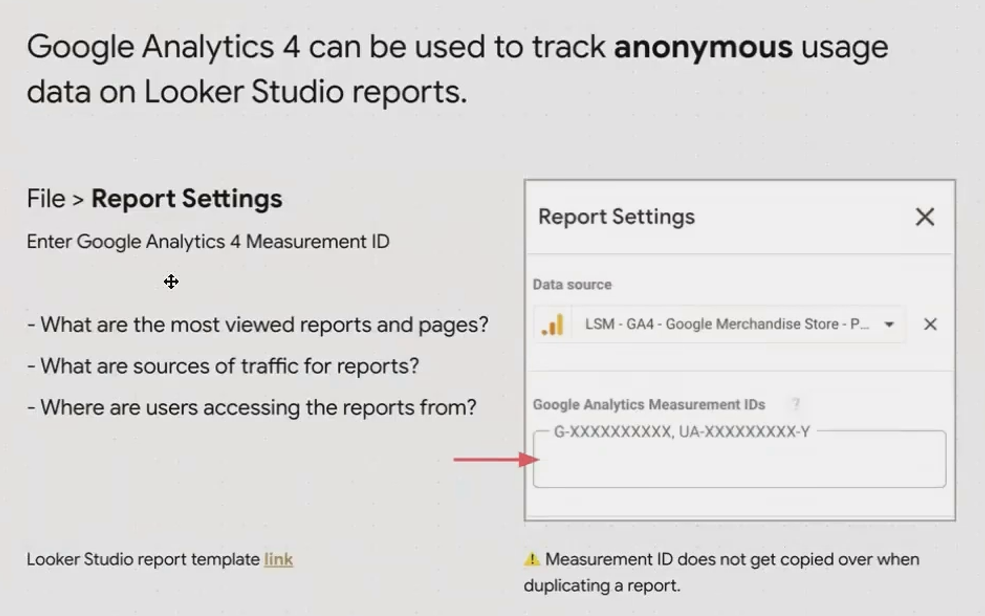
Pro Tip: Strategic Measurement ID Implementation
You have flexibility in how you implement tracking across your reports:
Single property for all reports: Track all your reports in one GA4 property for a holistic view
Client-specific properties: Use different GA4 properties for different clients to keep their data separate
Selective tracking: Only add tracking to reports where usage metrics matter
Once set up, GA4 will automatically begin collecting anonymous data about how users interact with your report in view mode.
What GA4 Tracks in Your Looker Studio Reports
GA4 captures a wealth of information about how users interact with your reports:
Basic Metrics:
Users and sessions (unique visitors and visits)
Page views (individual report pages viewed)
Average session duration (time spent engaging with reports)
Screen resolution and device type (desktop vs. mobile usage)
Interactive Events:
Scroll depth (especially valuable for long reports)
Parameter input interactions (when users interact with input controls)
Geographic location of users (country and city level)
One interesting quirk: When users access your report via a shared link (with s= in the URL), GA4 interprets this as a search result view. This is because the s parameter functions like a search query parameter in traditional websites.
What GA4 Does NOT Track
It's equally important to understand the limitations:
No personally identifiable information is collected
Editor actions in edit mode are not tracked (only view mode interactions)
Scheduled email delivery views cannot be tracked (as confirmed by recent sources)
Individual filter selections are not tracked by default
Building a Meta-Dashboard to Visualize Usage
Now for the really powerful part – creating a "meta-dashboard" that gives you insights across all your tracked reports.
Here's how to set it up:
Create a new Looker Studio report
Connect to the GA4 property where your report tracking data is being sent
Design visualizations to answer key questions:
Which reports get the most traffic?
What pages within reports receive the most views?
How long do users typically engage with reports?
What devices are they using to access reports?
Where are users geographically located?
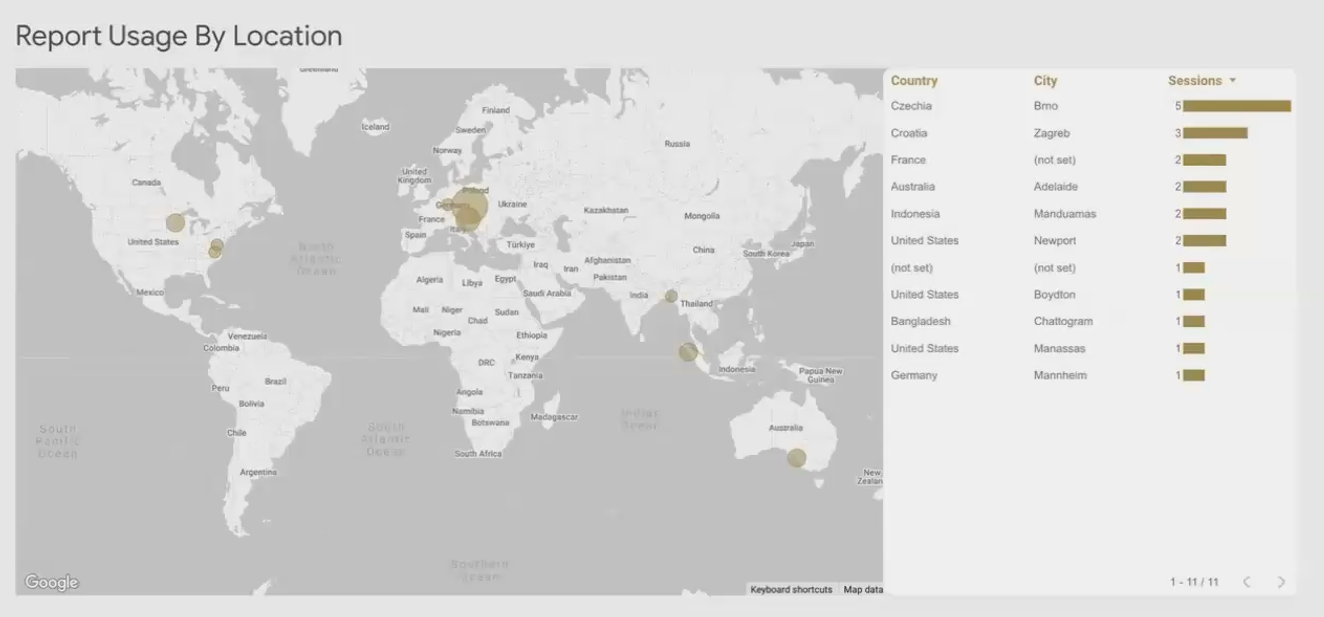
This meta-dashboard becomes your command center for understanding report engagement across your entire portfolio.
Practical Applications for Report Usage Data
Let's explore some real-world applications of this tracking data:
For Client Work:
Prove ROI by showing actual usage metrics for reports you've created
Justify maintenance fees with concrete evidence of continued engagement
Make data-driven recommendations for report improvements based on usage patterns
For Internal Teams:
Identify underutilized reports that might need promotion or retirement
Optimize popular pages with enhanced visuals or additional data points
Prioritize mobile optimization if usage data shows significant mobile traffic
For Lead Magnets:
Track conversion from report visits to other actions (if combined with website GA4)
Measure engagement with different sections of your lead magnet report
Refine content strategy based on what resonates with your audience
Frequently Asked Questions (FAQs)
Can I track who specifically is viewing my reports?
No, GA4 tracking is anonymous. If you need user-specific tracking, you'll need to use the Looker Studio log events in Google Workspace Admin console, which we covered in another section.
Will GA4 track when scheduled email deliveries of my report are viewed?
Unfortunately, no. When reports are delivered via email as PDFs or viewed in email clients, GA4 tracking is not active.
Do I need a separate GA4 property for tracking Looker Studio reports?
Not necessarily. You can use your existing GA4 property, but creating a dedicated property for your reports makes analysis cleaner and prevents report traffic from skewing your website metrics.
Can I track when users interact with specific filters or parameters?
By default, GA4 tracks when users interact with input controls (as form submissions), but not the specific values they select. For more detailed tracking, you would need custom event implementation.
Does enabling tracking slow down my reports?
The impact is minimal. GA4 tracking is designed to be lightweight and shouldn't noticeably affect report performance.
Tracking your Looker Studio reports with GA4 transforms them from static data visualizations into dynamic assets that generate their own insights. By understanding how your reports are being used, you can continually refine your approach to data visualization and deliver more value to your audience.
Whether you're building reports for clients, internal teams, or as part of your marketing strategy, the ability to answer "Are they using it?" with confidence gives you a powerful advantage.
Remember, the most beautiful dashboard in the world is worthless if nobody looks at it. By implementing tracking, you ensure your hard work translates into actual engagement and impact.
Note:
This post is based on a subject covered in the Looker Studio Masterclass Program. To learn more about Looker Studio Masterclass, click here.
