
Data blending is at the heart of Looker Studio's most powerful capabilities. While the Left Outer Join is the workhorse of most data blend operations, understanding other join types can unlock solutions to complex data problems. Today, we're focusing on a less-utilized but incredibly powerful join type: the Right Outer Join.
Why You Need to Understand Right Joins
If you've been working with Looker Studio for a while, you're likely familiar with Left Joins. They're straightforward: keep everything from the left table and only matching data from the right. But what happens when your data structure demands something different? This is where the Right Outer Join comes into play.
According to Looker Studio's official documentation, a Right Outer Join "returns all rows from the right table and only matching rows from the left table." At first glance, this might seem redundant - couldn't you just swap your tables and use a Left Join? Not so fast!
What Exactly Is a Right Outer Join?
Core Concept
A Right Outer Join works like this:
It keeps ALL rows from the right table (nothing is dropped)
It only keeps matching rows from the left table
When no match exists in the left table, NULL values are inserted
Let's break this down with a practical example:
When we apply a Right Outer Join with Date as the join key, here's what happens:
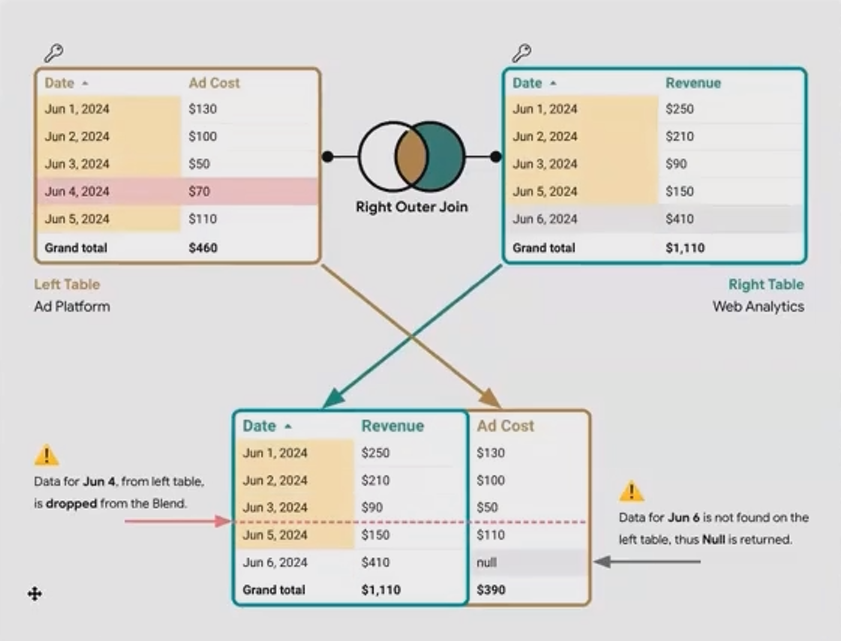
Notice how June 4 disappears completely (it was only in the left table), while June 6 remains but has a NULL for Ad Cost (it was only in the right table).
When To Use a Right Outer Join: The Multi-Table Problem
You might be thinking: "Why not just swap the tables and use a Left Join?" In a simple two-table scenario, you'd be absolutely right! But the real power of Right Joins emerges when you're working with multiple tables.
The Table Order Challenge
One crucial aspect of Looker Studio that many users overlook is how blends process tables. Joins in Looker Studio happen sequentially from left to right:
Table 1 and Table 2 are joined first
The result of that join is then joined with Table 3
That result is joined with Table 4, and so on
This sequential processing creates situations where a Right Join is the only practical solution.
Real-World Scenario: The Cross-Device Analysis
Imagine you're trying to perform this analysis:
You have three tables representing user activity on different devices (Desktop, Mobile, Tablet)
You want to find users who appear in ALL THREE tables (true cross-device users)
Then you want to enrich your main customer dataset with this information
How would you approach this?
The Problem: You need to Inner Join the three device tables first, then use those results to enrich your main customer table.
Attempt 1 (Doesn't Work):
Customer (Left) + Desktop (Right) + Mobile (Right) + Tablet (Right)This fails because Looker Studio will first join Customer and Desktop, then join that result with Mobile, and so on. You'd get customers who used at least one device, not necessarily all three.
Solution (Right Join):
Desktop (Left) + Mobile (Left, Inner Join) + Tablet (Left, Inner Join) + Customer (Right, Right Outer Join)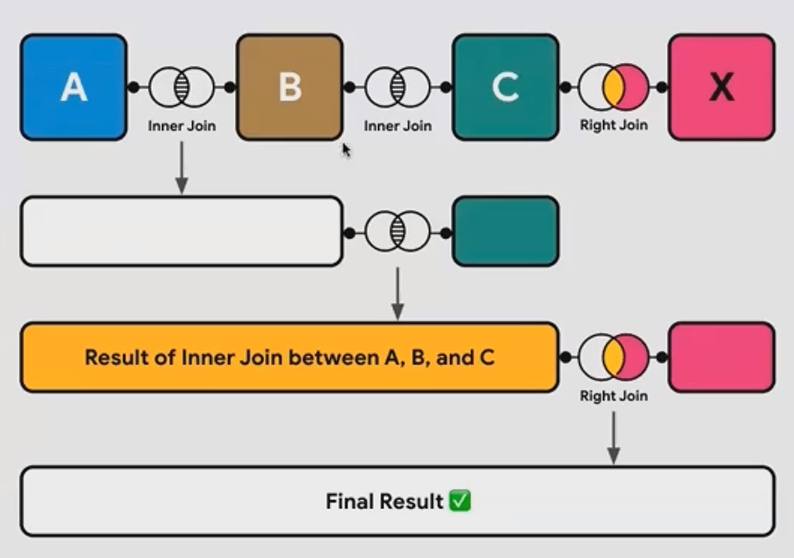
With this approach:
Desktop, Mobile, and Tablet are Inner Joined first, giving you only users who appear in all three
Then, those results are Right Joined with your Customer table
The Right Join ensures your final dataset includes ALL customers, with NULL values for those who don't use all three devices
This preserves the integrity of your customer dataset while enriching it with the cross-device information.
Right Join vs. Left Join:
In a Left Join, the left table determines which rows appear in the result. In a Right Join, it's the right table that controls this. Think of it as:
Left Join: "I care most about this left table, but want to add data from the right"
Right Join: "I care most about this right table, but want to add data from the left"
Frequently Asked Questions (FAQs)
When should I use a Right Join instead of just swapping tables and using a Left Join?
For simple two-table blends, you typically wouldn't. However, Right Joins become valuable in multi-table scenarios where the order of join operations matters, particularly when you need to join the result of a multi-table blend with another dataset.
Do I need to handle nulls differently with Right Joins?
The principles are the same as with Left Joins, but remember that nulls will appear in the left table's columns rather than the right. Use IF(IS_NULL()) patterns to convert nulls to zeros or other values as needed.
I'm getting a "System Error" when trying to use Right Joins. What's happening?
System errors in Looker Studio can be tricky to diagnose. Start by refreshing the page and the data source. If the error persists, check if you have filters applied that may be incompatible with your new blended data structure. Filters defined for the original data source may not work with your new blend configuration.
Can I use Right Join to blend data from different ad channels (Google Ads, Meta, etc.)?
While possible, a better approach for combining ad channel data is often to use a date-based Full Outer Join or to create a date scaffold as your left table and Left Join all your ad channel data to it. This ensures you capture data from all channels, even on days when some channels had no activity.
The Right Outer Join might be Looker Studio's most underutilized join type, but in specific scenarios - particularly complex multi-table blends - it's the perfect tool for the job. While you might only need it for 1% of your Looker Studio projects, understanding when and how to use it will save you countless hours of troubleshooting when that situation arises.
Remember: in data analysis, having the right tools is important, but knowing exactly when to use each tool is what separates good analysts from great ones.
Note:
This post is based on a subject covered in the Looker Studio Masterclass Program. To learn more about Looker Studio Masterclass, click here.
