
In the advanced track of our Looker Studio journey, we're exploring the more sophisticated aspects of data blending. So far, we've covered Left Outer Join and Inner Join, but now we're diving into two critical concepts that can dramatically expand your data transformation capabilities: Full Outer Join and creating a Union effect in Looker Studio.
Why are these concepts important? Because sometimes you don't want to lose any data from either table, and other times you need to stack data sets vertically - skills that separate Looker Studio novices from experts.
The Full Outer Join: Keeping All Your Data Intact
What Is a Full Outer Join?
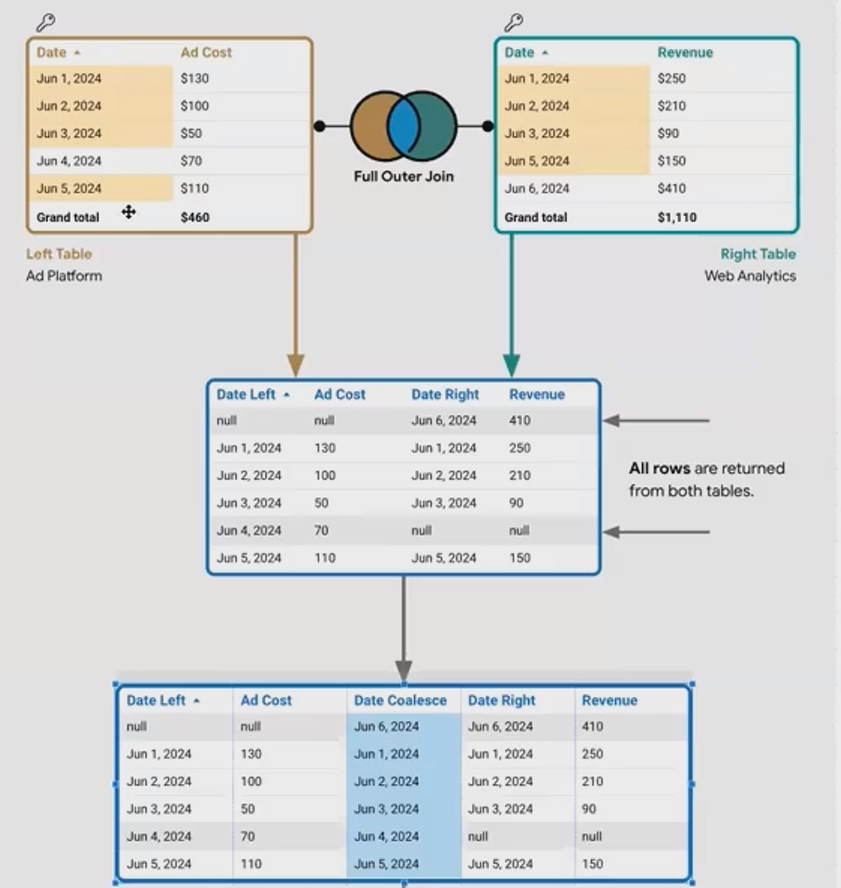
A Full Outer Join is essentially the "keep everything" join. Unlike a Left Join (which prioritizes the left table) or an Inner Join (which only keeps matching rows), a Full Outer Join returns all rows from both tables - regardless of whether they match or not.
When rows match between tables based on your join key, they're merged together. Where there's no match, Looker Studio inserts null values for the missing columns. The critical difference is that no data is dropped from either table.
![Full Outer Join Visualization - showing all data from both tables being kept]
How Full Outer Join Works in Practice
Let's look at a practical example using two simple tables:
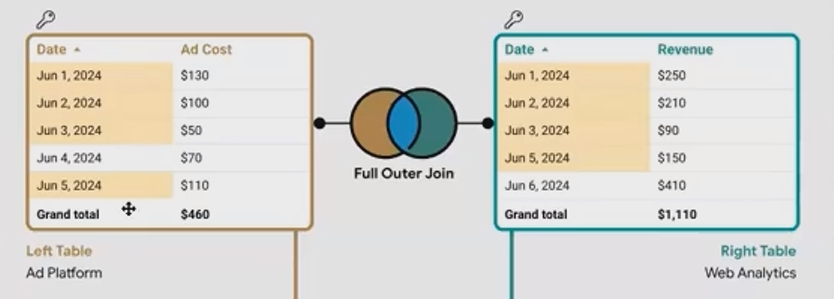
When we apply a Full Outer Join with "Date" as our join key, here's what happens:
All dates from both tables are kept in the result
For dates that exist in both tables (June 1, 2, 3, 5), values from both tables are merged
For dates that exist in only one table:
June 4 (only in Table A): Revenue will be
nullJune 6 (only in Table B): Ad Cost will be
null
The result looks like this:
Managing Join Key Columns with COALESCE
One quirk of Full Outer Join in Looker Studio is that it returns the join key column from both tables. So instead of a single "Date" column, you might see "Date (Table A)" and "Date (Table B)" with some null values in each.
To create a single, clean date column for your visualizations, you need to create a calculated field using the COALESCE() function:
COALESCE(Date (Table A), Date (Table B))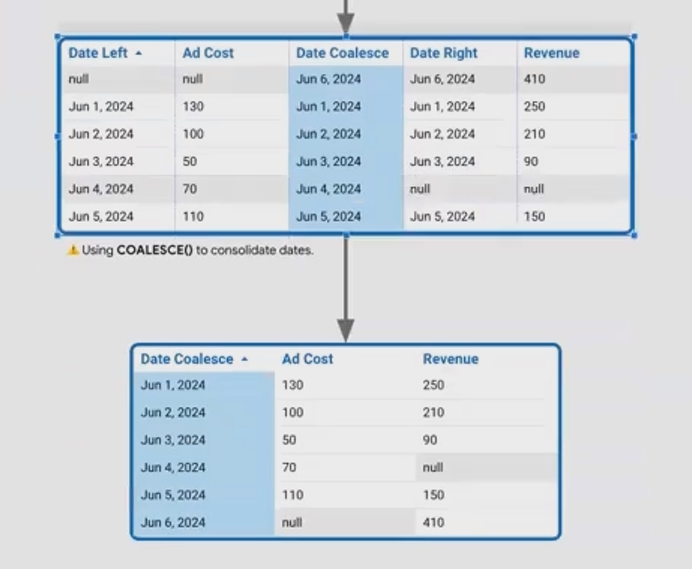
This function returns the first non-null value it encounters, effectively merging your two date columns into one comprehensive column.
The "Union" Workaround: Stacking Data Vertically
What is a Union and Why Isn't It in Looker Studio?
A Union is fundamentally different from a join. While joins merge tables side-by-side (horizontally), a Union stacks tables on top of each other (vertically).
For a Union to work properly, both tables need to have the same schema - the same column names and data types. The result is essentially Table A's rows followed by Table B's rows in one taller table.
Unfortunately, Union is not a native join type in Looker Studio. This limitation has been a pain point for many analysts, but there's a clever workaround using Full Outer Join.
Creating a Union Effect with Full Outer Join
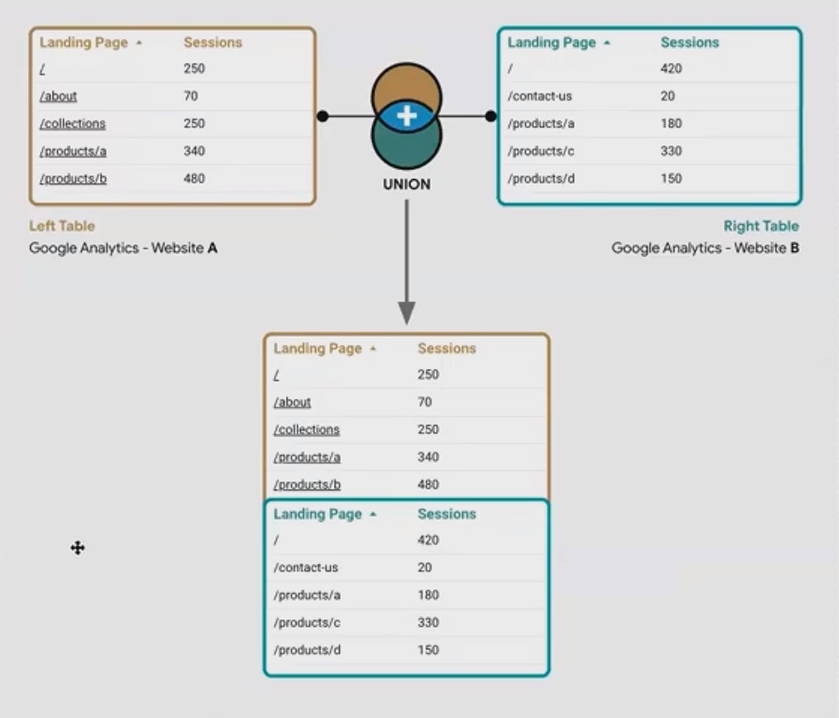
Let's say we have two tables with website traffic data:
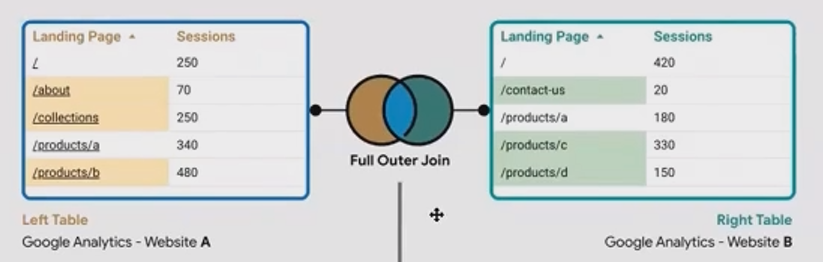
We want to combine these into a single table that shows the total sessions across both websites for each landing page. Here's how to create that Union effect:
Perform a Full Outer Join using "Landing Page" as the join key
Create a consolidated Landing Page column using
COALESCE:
COALESCE(Landing Page A, Landing Page B)Create a Sessions Total column that properly handles nulls:
IF(Sessions A IS NULL, 0, Sessions A) + IF(Sessions B IS NULL, 0, Sessions B)The result is a single table with unique landing pages and their combined sessions:
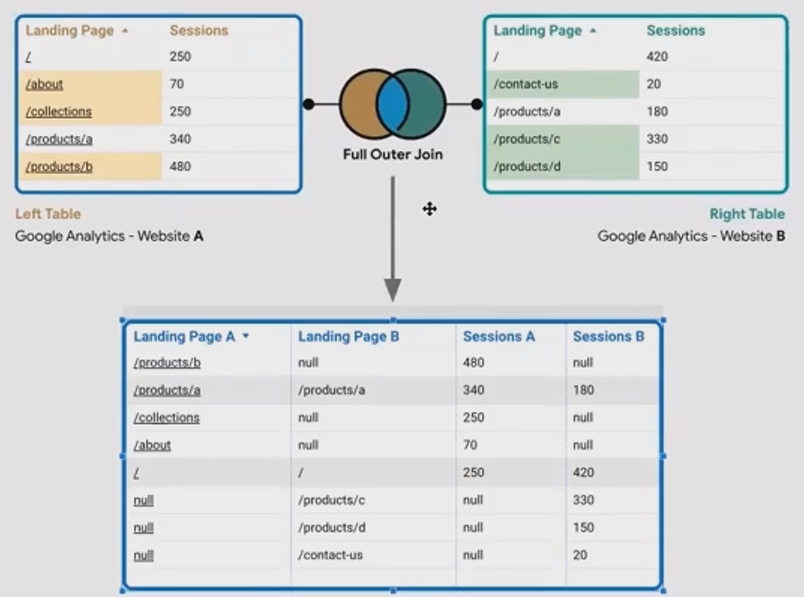
This mimics exactly what a Union would do, by first doing a Full Outer Join and then using calculated fields to handle the aggregation properly.
Frequently Asked Questions (FAQs)
When would I use a Full Outer Join instead of a Left or Inner Join?
Use a Full Outer Join when you:
Don't want to lose any data from either table
Need to create a comprehensive view of all your data points
Are trying to identify gaps or mismatches between datasets
Want to simulate a Union (as described above)
I'm getting system errors when trying to blend data. What should I check?
First, refresh the page and data source. If the problem persists, check your filters and sorting settings - these often cause compatibility issues with blended data sources. Look for filters that may have been created for the original data source that are now incompatible with your blended source.
Can I use Full Outer Join with more than two tables?
Yes, Looker Studio allows blending up to five data sources. Remember that joins are processed sequentially from left to right, so the first two tables are joined, then that result is joined with the third table, and so on. This order matters significantly with Full Outer Joins.
Does a Full Outer Join always create a larger dataset than other join types?
Generally yes. A Full Outer Join retains all records from both tables, so it will be at least as large as the largest individual table, and potentially larger if there are unique records in both tables. This can impact performance if you're working with very large datasets.
Full Outer Join is a powerful tool in your Looker Studio arsenal, particularly when you need to retain all data from multiple sources or simulate a Union operation. While it requires a bit more post-processing with calculated fields like COALESCE(), the flexibility it provides is well worth the effort.
By mastering these advanced data blending techniques, you'll be able to create more comprehensive reports that accurately represent all of your data without accidentally dropping important records along the way.
Remember - the right join type depends entirely on your analytical goals. Sometimes you want to filter data down (Inner Join), sometimes you want to enrich a primary dataset (Left Join), and sometimes you need the complete picture that only a Full Outer Join can provide.
Note:
This post is based on a subject covered in the Looker Studio Masterclass Program. To learn more about Looker Studio Masterclass, click here.
