
Mastering Looker Studio Pro: How to Set Up Alerts and Use the Mobile App
Ever wished your reports could notify you when something important happens with your data? Or needed to check your business metrics while on the go? If you're nodding along, you're about to discover two powerful features of Looker Studio Pro that will revolutionize how you interact with your data. Let's explore how to create alerts on charts and use the Looker Studio mobile app to keep your finger on the pulse of your business anytime, anywhere.
Creating Alerts on Charts: Never Miss Critical Data Changes
One of the most valuable Pro features is the ability to set up alerts that notify you when specific data conditions are met. This proactive monitoring capability transforms your dashboards from passive reporting tools into active business intelligence assets.
How Chart Alerts Work
Chart alerts in Looker Studio Pro allow you to monitor specific metrics and receive notifications when predefined conditions are met. For example, you might want to know immediately if:
Website traffic suddenly spikes above 100,000 views
Conversion rates drop below a critical threshold
A specific keyword appears in customer feedback
When these conditions trigger, Looker Studio automatically sends an email notification to designated recipients, complete with a direct link to the report for immediate investigation.
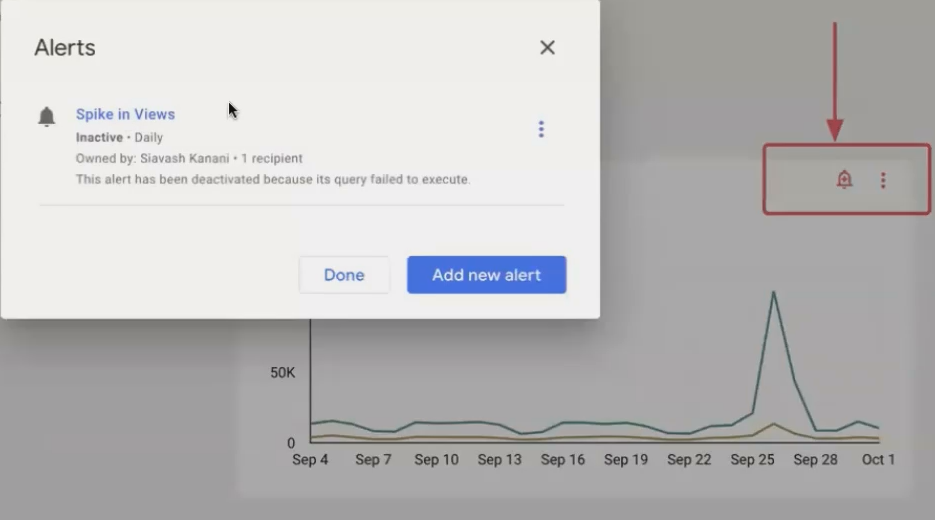
Look for the bell icon in the chart header to set up alerts in Looker Studio Pro.
Setting Up Your First Alert
Creating an alert is straightforward, but there are some important requirements and steps to follow:
Access Requirements: To create an alert, you need:
Viewer access to both the report and its data source
The report must be a Pro asset (in a Team Workspace or Sandbox)
Alert Creation Process:
View the report (alerts can only be created in view mode, not edit mode)
Look for the bell icon in the chart header (ensure chart headers are visible in properties)
Click the bell icon and select "Add new alert"
Name your alert and add a description
Choose whether the alert is visible just to you or public within your organization
Add recipients from your organization
Set your alert criteria (metrics, thresholds, conditions)
Set the frequency (daily, weekly, monthly, or custom)
Click "Set" to activate your alert
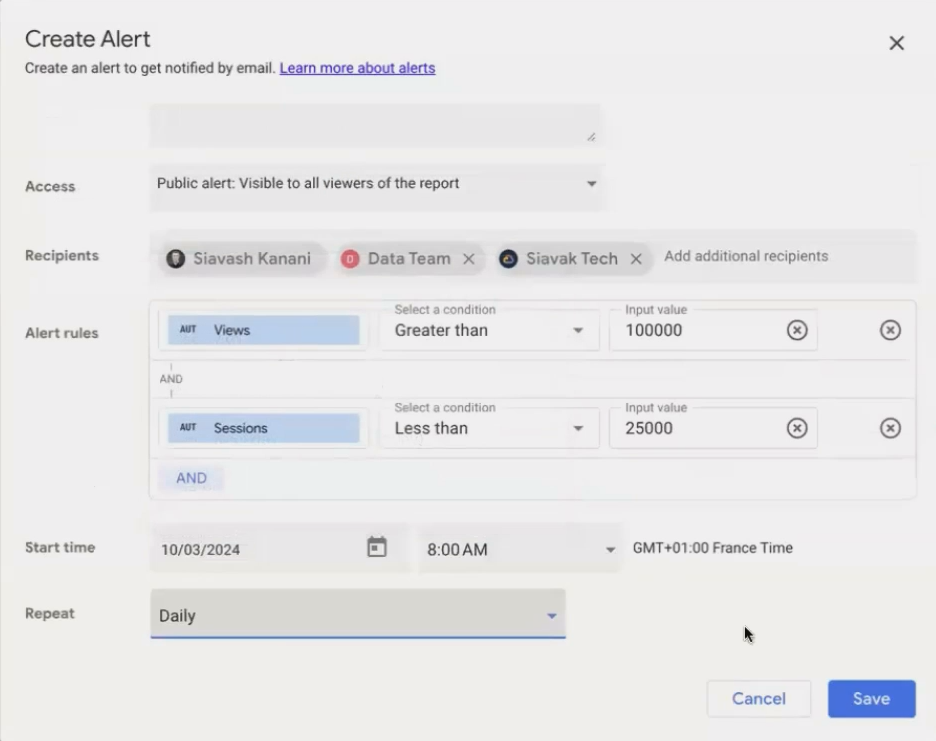
Configure your alert criteria, recipients, and frequency in the alert creation dialog.
Practical Alert Examples
Let's look at some real-world examples of how businesses use chart alerts:
E-commerce: Alert when daily revenue falls below the monthly average
Content Marketing: Notification when a blog post exceeds 10,000 views within 24 hours
Customer Support: Alert when negative sentiment words appear in feedback forms
Advertising: Notification when ad spend exceeds budget by 20%
Website Performance: Alert when page load time exceeds 3 seconds
One particularly useful application is creating a "spike in views but not sessions" alert. This might indicate bot traffic or tracking issues that require immediate attention. By setting conditions like "Views > 100,000 AND Sessions < 25,000," you can quickly identify these anomalies.
Alert Limitations to Keep in Mind
While powerful, chart alerts do have some important limitations:
Alerts can only be based on fields used in the chart
Recipients must be members of your organization
Blended data and calculated fields cannot be used in alerts
If you remove or significantly change a chart, its alerts may become inactive
Alerts that fail to execute (e.g., due to data source issues) will become inactive after repeated failures
Looker Studio Mobile App: Your Data Dashboard on the Go
In today's fast-paced business environment, waiting to get back to your desk to check important metrics isn't always an option. The Looker Studio mobile app, available exclusively to Pro subscribers, brings your dashboards to your pocket.
Getting Started with the Mobile App
The Looker Studio mobile app is available for both iOS and Android devices. Here's how to get up and running:
Download the app from the App Store or Google Play Store
Log in with your Pro-enabled Google account
Browse your recent reports, team workspaces, and folders
Select a report to view it in mobile format
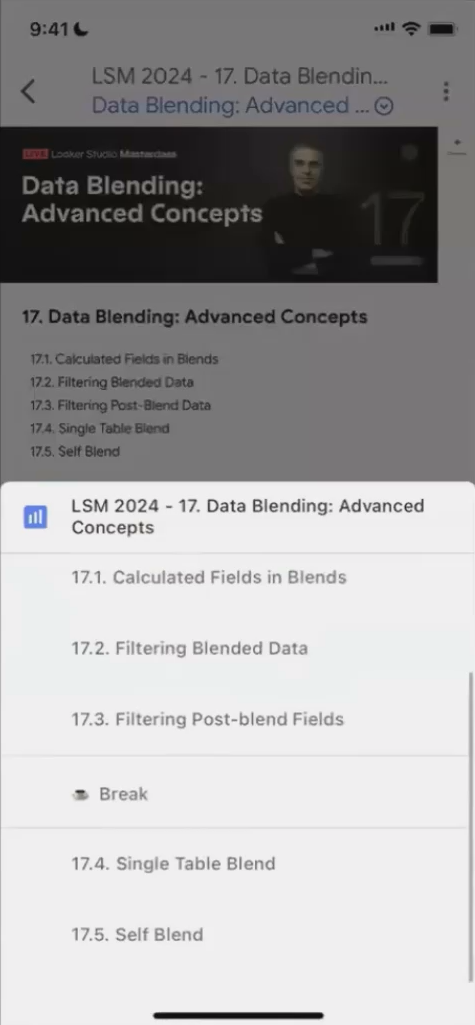
The Looker Studio mobile app provides easy access to all your reports and workspaces.
Navigating the Mobile Experience
The mobile app offers two viewing modes for your reports:
Desktop View: Shows the report exactly as it appears on desktop (which may require zooming and scrolling on smaller screens)
Mobile-Friendly View: A responsive version that attempts to optimize the layout for mobile viewing
To switch between views, tap the three-dot menu and select "Switch to mobile-friendly report."
(Suggested image: Side-by-side comparison of desktop view vs. mobile-friendly view of the same report)
Caption: Compare the standard desktop view (left) with the mobile-friendly view (right) of the same Looker Studio report.
Mobile App Strengths and Limitations
Strengths:
Access to all your reports from anywhere
Ability to switch between workspaces and user accounts
Interactive features like clicking on maps and charts
Option to switch between desktop and mobile-friendly views
Limitations:
The mobile-friendly view isn't perfect for complex dashboards
Tables can be difficult to read and navigate on smaller screens
Some interactive features may not work as seamlessly as on desktop
The app requires a Pro license for the user (though reports can be shared with non-Pro users via web)
According to recent user feedback from 2025, the mobile app has seen significant improvements in performance and responsiveness compared to its initial release, though it still works best with simpler, purpose-built mobile dashboards.
Frequently Asked Questions (FAQs)
Can I create alerts based on calculated fields?
No, alerts can only be based on fields that are directly used in the chart. Blended data and calculated fields cannot be used as alert criteria.
Will viewers of my report see the alerts I've created?
By default, viewers can see and create alerts. However, you can disable this by modifying the sharing settings of your report to prevent viewers from viewing and creating alerts.
What happens if my data source is temporarily unavailable?
If Looker Studio cannot access your data source when checking an alert, the alert will fail to execute. After repeated failures, the alert will become inactive to prevent unnecessary system checks.
How quickly will I receive an alert notification?
Alert notifications are sent shortly after the scheduled check time if the conditions are met. They are not instantaneous and depend on the frequency you've set (daily, weekly, etc.).
Do all users need a Pro license to view reports on the mobile app?
Yes, only users with a Pro license can log into and use the mobile app. However, non-Pro users can still view shared reports through a web browser on their mobile device.
Can I create or edit reports on the mobile app?
The mobile app is primarily designed for viewing reports. While you can navigate between reports and interact with charts, creating or editing reports is best done on desktop.
Does the mobile app work offline?
No, the Looker Studio mobile app requires an internet connection to access and display your reports as it pulls data in real-time.
How secure is the mobile app?
The mobile app uses the same security protocols as Looker Studio on desktop. Your login is protected by Google's authentication, and data access is determined by your permissions within your organization.
Chart alerts and the mobile app represent two of the most practical enhancements Looker Studio Pro offers over the free version. They transform static reports into dynamic, accessible business tools that keep you informed wherever you are.
For organizations serious about data-driven decision making, these features alone can justify the $9 per user monthly investment in Pro. The ability to proactively monitor critical metrics and access insights on the go creates a more responsive, agile approach to business intelligence.
As you explore these features, remember that they're part of a broader Pro ecosystem that includes team workspaces, enhanced report delivery, and organizational asset ownership. Together, these capabilities make Looker Studio Pro a powerful yet accessible platform for organizations of all sizes.
Ready to take your Looker Studio experience to the next level? Start by identifying the metrics most critical to your business and setting up alerts to monitor them. Then, download the mobile app to stay connected to your data wherever your work takes you.
Note:
This post is based on a subject covered in the Looker Studio Masterclass Program. To learn more about Looker Studio Masterclass, click here.
