
Looker Studio Security: 5 Essential Ways to Restrict User Actions in Reports
When you share your meticulously crafted Looker Studio reports with team members or clients, you're not just sharing data, you're sharing your analytical framework and potentially sensitive business information. While sharing is essential, maintaining appropriate levels of control over what users can do with your reports is equally important.
In this guide, we'll explore how Looker Studio empowers you to implement fine-grained security measures through its action restriction capabilities. Whether you're concerned about intellectual property protection or simply want to maintain the integrity of your reports, understanding these controls will elevate your data sharing strategy.
Understanding the Need for Action Restrictions
Before diving into the technical aspects, let's consider why restricting actions matters:
Intellectual property protection: Prevent unauthorized copying of your carefully designed reports
Data governance: Ensure viewers can't accidentally or intentionally change access permissions
Report integrity: Maintain consistent analysis by controlling who can modify your report
Compliance requirements: Meet organizational or regulatory security standards
Looker Studio offers robust solutions for all these scenarios through its action restriction controls.
How to Access Action Restriction Settings
Finding these security controls is straightforward:
Open your Looker Studio report
Click the Share button in the top-right corner
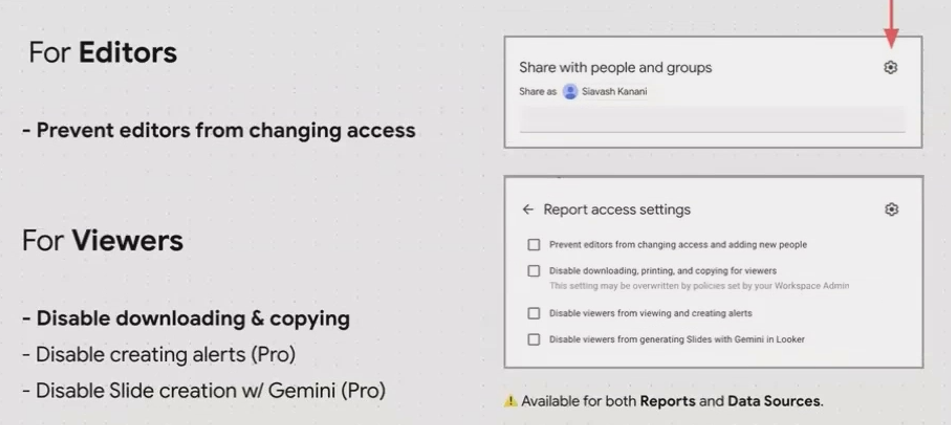
After setting basic sharing options (viewers vs. editors), click the gear icon
This opens the Report access settings panel where all restriction options live
Restriction Options for Viewers: Protecting Your Work
Preventing Copying and Downloads
One of the most valuable restrictions is the ability to prevent viewers from creating their own copies of your reports. To enable this protection:
In the Report access settings panel, check the box for "Disable downloading, printing and copying for viewers"
Click Done to apply the setting
This restriction addresses a common concern when sharing reports with clients or external stakeholders. While it can't prevent screenshots (no digital platform truly can), it effectively blocks the one-click duplication of your report structure, formulas, and configurations.
As I often tell my students: "This setting is essential when you've invested significant time in report development but aren't ready to transfer full ownership."
Understanding the Limitations
It's important to maintain realistic expectations about what this restriction can achieve:
It prevents the built-in copy function from working
It disables the download as PDF option for viewers
It blocks the print function within Looker Studio
However, determined users could still capture information through screenshots or manual recreation. The protection is best understood as a guardrail rather than an absolute barrier.
Restriction Options for Editors: Maintaining Control
When collaborating with team members, you might want to grant them editing capabilities without surrendering administrative control of the report.
Preventing Access Changes
To maintain yourself as the gatekeeper of who can access the report:
Check the box for "Prevent editors from changing access and adding new people"
Click Done to apply the setting
This is particularly valuable in client work scenarios. As I experienced with a long-term client who requested edit access after years of view-only permissions, this setting allowed me to grant them the ability to make changes without risking them accidentally adding new editors who might break the report.
"I'll share edit access with your CEO," I told them, "but I'll restrict the ability to add new people, so we maintain a clear line of accountability for any changes."
Real-World Scenario: The Client Confidence Balance
Let me share a practical example from my consulting work:
A client I'd worked with for several years expressed concern about their dependency on my reports. "What happens if you're hit by a bus?" they asked (a surprisingly common question in the consulting world!).
The solution was to provide edit access to key stakeholders while restricting their ability to modify access permissions. This balanced their need for autonomy with my need to maintain report integrity. I implemented the following approach:
Granted edit access to the CEO and Head of Analytics
Enabled the "Prevent editors from changing access" restriction
Provided documentation on safe editing practices
Scheduled quarterly reviews to check report integrity
This compromise satisfied both parties: they gained the security of ownership without the risk of accidental modifications by inexperienced team members.
Pro Features for Advanced Restrictions
Looker Studio Pro offers additional restriction capabilities that aren't available in the free version:
Disable viewers from creating alerts on charts: Prevents users from setting up their own alert systems
Disable viewers from generating Google Slides using Gemini in Looker: Restricts AI-powered presentation generation
These advanced features can be useful for enterprise environments with strict governance requirements or when working with particularly sensitive data.
Applying Similar Restrictions to Data Sources
What many Looker Studio users don't realize is that these same restriction principles apply to data sources as well as reports.
When sharing a reusable data source:
Navigate to the data source management page
Click the Share button
After setting basic permissions, click the gear icon
Apply similar restrictions to prevent copying or changing access
This is particularly valuable when you've created complex calculated fields or parameters that represent significant intellectual investment.
Frequently Asked Questions (FAQs)
Can I completely prevent someone from taking screenshots of my report?
No. While Looker Studio's restrictions prevent built-in copying functions, no web platform can completely prevent users from taking screenshots. If you need that level of security, consider implementing viewer-specific authentication and watermarking in your reports.
If I restrict downloads, can users still export data from tables in the report?
Yes. The download restriction prevents PDF downloads of the entire report but doesn't block individual data exports from tables. If you need to prevent data exports, consider using calculated fields that limit the amount of data displayed at once.
Will restricting actions affect scheduled email deliveries?
No. Scheduled email deliveries are controlled by the report owner and will continue to function normally regardless of viewer restrictions.
Can I temporarily disable these restrictions without removing them completely?
Unfortunately, there's no built-in toggle for temporarily suspending restrictions. You'll need to uncheck the relevant options and then reapply them later. In Looker Studio Pro, you can pause schedules, but restriction settings must be manually toggled.
Best Practices for Balanced Security
Finding the right balance between security and usability is key to successful report sharing. Consider these best practices:
Start restrictive and loosen gradually as trust develops with stakeholders
Communicate clearly about what restrictions are in place and why
Create dedicated "public" versions of sensitive reports with simplified data for broader sharing
Review sharing settings quarterly to ensure they still align with organizational needs
Document your sharing strategy for consistency across your reporting portfolio
Properly implemented security controls don't just protect your work, they create confidence in your reporting system. By thoughtfully restricting certain actions, you can actually encourage more sharing and collaboration because you've mitigated the risks.
As you continue developing your Looker Studio expertise, remember that the most successful data strategies balance openness with appropriate controls. The restriction features we've explored are powerful tools in achieving that balance.
Ready to take your Looker Studio security to the next level? Start by auditing your current sharing settings and implementing these restrictions where appropriate. Your reports (and your peace of mind) will be better for it.
This blog post is part of our comprehensive Looker Studio Masterclass series. Looking for more advanced techniques? Check out our lessons on parameter use cases, data blending, and more.
Note:
This post is based on a subject covered in the Looker Studio Masterclass Program. To learn more about Looker Studio Masterclass, click here.
