
Mastering Looker Studio Asset Sharing: Permissions, Data Sources & Best Practices
Welcome to the world of Looker Studio asset sharing! If you've spent hours crafting the perfect dashboard, you know that building reports is only half the journey. The real magic happens when you share your data stories with the right people, in the right way.
In this guide, we'll explore how to effectively share both reports and data sources in Looker Studio. Whether you're working with clients, team members, or stakeholders across your organization, understanding these sharing mechanisms will help you maintain control while enabling collaboration.
Let's dive into the essential knowledge you need to share your Looker Studio assets like a pro!
Understanding Looker Studio Assets
What Are Looker Studio Assets?
In Looker Studio, we work with two primary types of assets:
Reports: The dashboards and visualizations you create to tell your data story
Data Sources: The connections to your underlying data that power your reports
It's crucial to understand that both reports and data sources can be shared independently. This separation gives you incredible flexibility in how you structure your data workflow.
Sharing Options: From Restricted to Public
Looker Studio offers several levels of access control, similar to other Google Workspace tools:
Restricted Access
When you need to share with specific individuals, use restricted access. Simply enter their email addresses and they'll gain access based on the permissions you set.
Pro Tip: Make sure the people you're sharing with have Google accounts associated with their email addresses. Non-Google accounts won't be able to access your reports, even if explicitly shared.
Domain-Wide Access
Want to share with your entire organization? You can enable domain-specific access to share with everyone at your company (e.g., everyone@yourcompany.com).
Unlisted Access
This option generates a link that allows anyone with that link to access your report, without making it publicly searchable. This is perfect for client work when you need to share widely but don't want the report publicly indexed.
Public Access
The most open option allows anyone on the internet to access your report, and search engines can index it. Use this option sparingly and only for content you're comfortable being completely public.
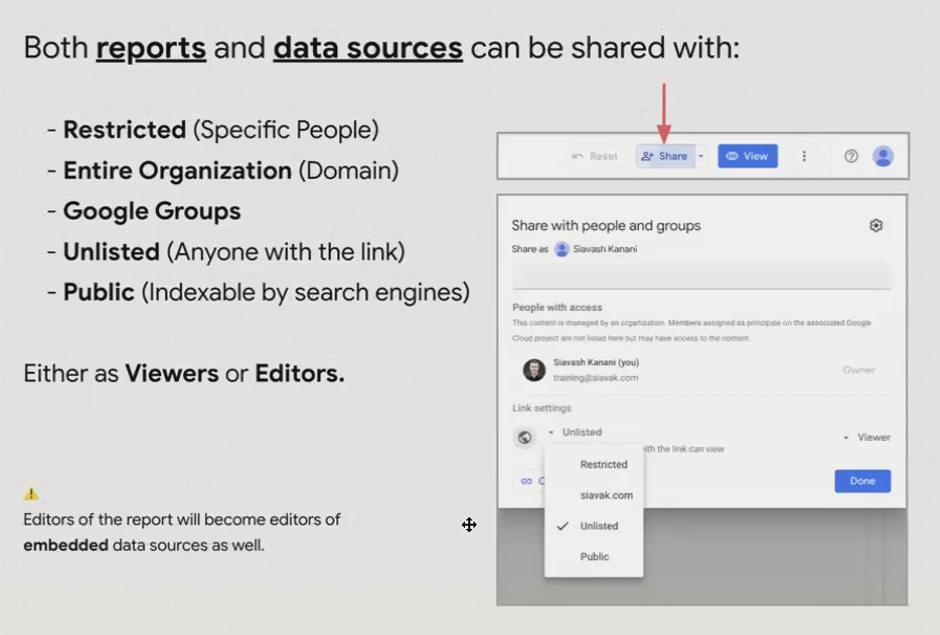
The sharing dialog in Looker Studio offers multiple access levels from restricted to public.
Viewer vs. Editor: Choosing the Right Permission Level
Beyond controlling who can access your assets, you also need to decide what they can do with them:
Viewer Permissions
Viewers can:
Navigate through report pages
Interact with filters and controls
See the data presented in visualizations
Viewers cannot:
See your data sources or how they're configured
Access your calculated fields or formulas
Edit any aspect of the report
Editor Permissions
Editors have full access to:
Add, remove, or edit pages and visualizations
See and modify data sources
View hidden pages and elements outside the canvas
Change formulas and calculations
Security Consideration: Be extremely careful when granting editor access, especially to clients. Editors can see all the backend setup of your report, including any custom formulas that might be part of your intellectual property.
Sharing Data Sources: A Different Approach
Understanding how to share data sources is crucial for collaborative workflows. There are two types of data sources in Looker Studio:
Embedded Data Sources
Embedded data sources live within a specific report and cannot be shared independently. Anyone with edit access to the report automatically has edit access to its embedded data sources.
Reusable Data Sources
Reusable data sources exist independently of any report and can be shared separately. This is particularly useful when:
Multiple reports need to use the same data connection
You want to maintain a single source of truth
Different team members need to create reports from the same data
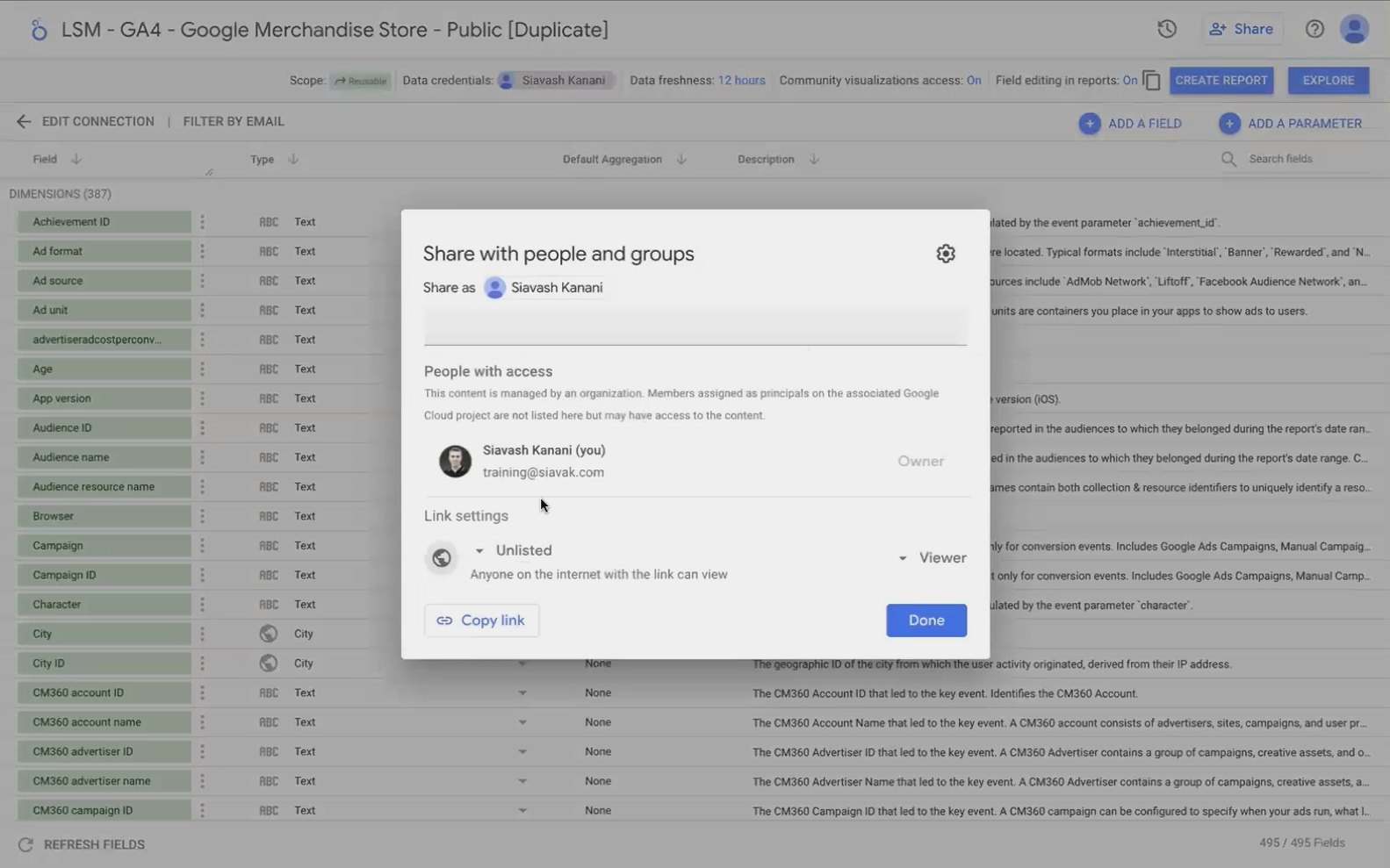
How to Share a Reusable Data Source:
Go to the Looker Studio homepage at studio.google.com
Click on "Data Sources" in the navigation
Find your data source and click on it
Use the "Share" button in the top right
Alternatively, when managing your data sources within a report:
Go to "Resource" > "Manage added data sources"
Click the external link icon next to any reusable data source
Use the Share button on the resulting page
The Critical Decision: Owner's vs. Viewer's Credentials
When sharing a data source, you'll need to decide whose credentials will be used to access the underlying data:
Owner's Credentials
With this setting, the data source always uses your credentials to connect to the underlying platform (like Google Analytics or BigQuery). This is perfect for situations where:
Your team members don't have direct access to the underlying data platform
You want to maintain credential control while enabling report creation
You're working with external stakeholders who shouldn't have direct data access
Viewer's Credentials
This setting attempts to use the credentials of whoever is viewing the report. This only works if the viewer also has direct access to the underlying data platform.
Important: If you share a data source with viewer's credentials and the recipient doesn't have access to the underlying data platform, they won't be able to use the data source effectively.
The "Notify People" Checkbox: A Strategic Consideration
When sharing with specific users, you'll notice a "Notify people" checkbox. This sends an automatic email from Looker Studio notifying recipients about their new access.
While convenient, I generally recommend leaving this unchecked when sharing with clients. Here's why:
It allows you to control the narrative and introduction to the report
You can provide context and guidance in your own communication
You can schedule a proper walkthrough before they explore independently
It prevents confusion or misinterpretation of the data
This is especially important for first-time shares or complex reports where context matters.
Frequently Asked Questions (FAQs)
Can I share a Looker Studio report with someone who doesn't have a Google account?
No, recipients must have a Google account associated with the email address you're sharing with. If they don't, you'll need to either have them create a Google account or use alternative sharing methods like downloading the report as a PDF.
If I share a data source with someone, can they access my underlying data directly?
No. Sharing a Looker Studio data source only gives access to the Looker Studio interface for that data. It doesn't grant direct access to your Google Analytics account, BigQuery project, or any other underlying data platform.
Why can't some users access my report even though they're using their company email?
This typically happens when their email address isn't associated with a Google account. Even if they're using Google Workspace, some users might not have their account properly configured. In these cases, you may need to use alternative sharing methods or have your IT department help set up proper Google account access.
How do I know who has access to my reports and data sources?
You can always check the current sharing settings by clicking the "Share" button. This will show you everyone who currently has access and what permission level they have.
Mastering asset sharing in Looker Studio gives you the power to collaborate effectively while maintaining appropriate control over your data and visualizations. By understanding the differences between reports and data sources, permission levels, and credential options, you can create a sharing strategy that works for your specific needs.
Remember that effective sharing is about more than just technical access—it's about creating the right context for your audience to understand and engage with your data story.
In the next post, we'll explore how to restrict specific actions for your viewers and editors, adding another layer of security to your Looker Studio workflows.
Note:
This post is based on a subject covered in the Looker Studio Masterclass Program. To learn more about Looker Studio Masterclass, click here.
