
Looker Studio Pro Gemini AI Features: Formula Assistant & Generative Slides Tutorial
In today's data-driven world, creating compelling visualizations quickly can make the difference between actionable insights and missed opportunities. As part of Google's continued innovation in the business intelligence space, Looker Studio Pro now offers two game-changing Gemini AI features that transform how we work with data: Formula Assistant and Generative Slides.
These tools aren't just impressive tech demos, they're practical solutions designed to save you time and amplify your analytical capabilities. Let's dive into how these features work and when they can give you the biggest productivity boost.
Formula Assistant: Natural Language to Powerful Functions
Have you ever found yourself stuck trying to remember the exact syntax for a complex calculation in Looker Studio? Perhaps you're trying to parse dates, create a conditional statement, or apply regex to clean up messy data. Formula Assistant eliminates these pain points by turning plain English descriptions into fully-formed formulas.
How Formula Assistant Works
The process is beautifully simple:
When creating a calculated field, click the Gemini icon in the formula editor
Describe what you want to accomplish in everyday language
Watch as the AI generates the exact formula you need
Verify and apply the formula to your report
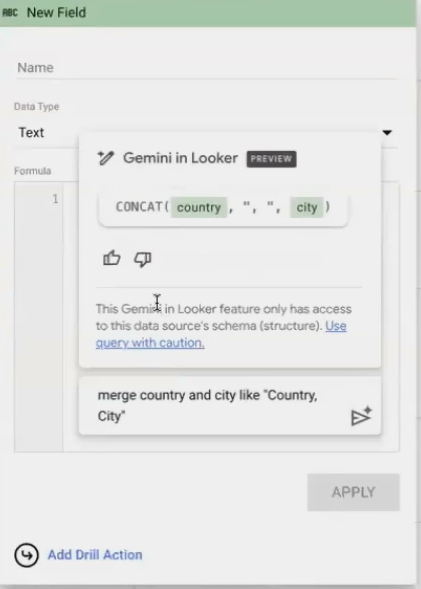
Formula Assistant translates plain English into functional Looker Studio formulas with a single click.
Real-World Applications
Let's explore some practical scenarios where Formula Assistant shines:
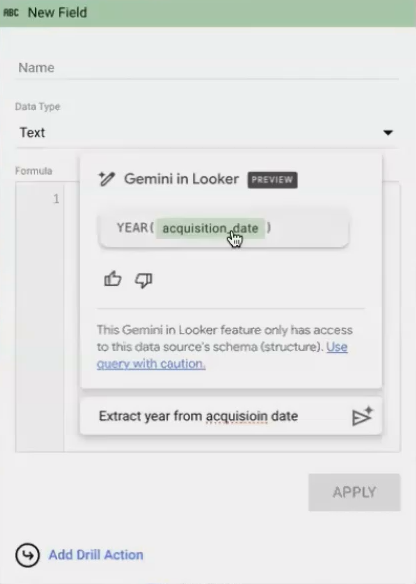
Parsing and Formatting Dates
Extracting specific components from dates is a common requirement in analytics, but date functions can be tricky to remember.
The old way: Look up syntax, trial and error, frustration
With Formula Assistant:
Creating Location-Specific Visualizations
When working with geographic data, you often need to combine fields for more precise mapping.
Example prompt: "merge country and city, like 'Country, City'"
Generated formula: CONCAT(Country, ", ", City)
This is particularly useful for resolving ambiguity in city names that exist in multiple countries (like Springfield or Portland), ensuring your geo charts plot points in the correct locations.
Building Segmentation with CASE Statements
Segmenting your data into meaningful buckets often requires lengthy CASE statements:
Example prompt: "bucket average LTV in groups of 50 dollars up to 500"
Generated result:
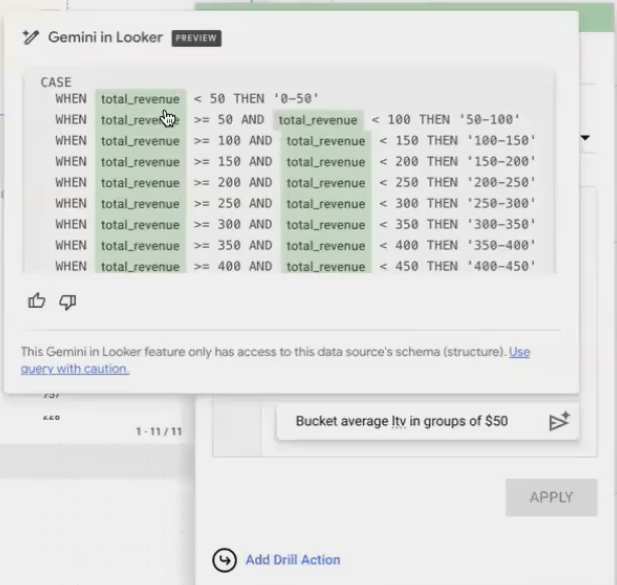
What would have taken several minutes to write (and likely contained errors) is generated in seconds.
Pro Tip: Always Verify the Logic
While Formula Assistant generates syntactically correct formulas, always review the business logic. The green checkmark only confirms the formula will run, not that it produces the exact results you need for your specific use case.
According to Google, Formula Assistant was trained on thousands of formulas written by Google employees, giving it a robust understanding of best practices. However, it may occasionally misinterpret your intent, especially with complex requirements.
Generative Slides: From Dashboard to Deck in Seconds
Presenting your data insights often means creating a separate presentation that showcases your Looker Studio visualizations. Generative Slides streamlines this process by automatically creating Google Slides presentations directly from your reports.
The Workflow in Action
With your Looker Studio report open, click the Gemini icon
Select "Generate slides"
Choose which visualizations to include
Decide whether to include AI-generated summaries
Click "Generate" and watch as your presentation materializes
Caption: Generative Slides creates professional presentations from your Looker Studio visualizations, complete with AI-powered insights.
Beyond Simple Screenshots
What makes Generative Slides truly powerful isn't just the time saved taking screenshots, it's two key capabilities:
1. Intelligent Data Summaries
For each visualization, Gemini analyzes the underlying data and creates concise bullet points highlighting key insights:
Peak values and when they occurred
Significant trends or patterns
Notable outliers or anomalies
Comparative analysis between segments
These summaries serve as excellent starting points for your presentation narrative, identifying patterns you might have missed.
2. Live, Connected Visualizations
Perhaps most impressively, the charts in your Google Slides remain linked to your Looker Studio report. If your data updates or you make visualization changes:
Open the Google Slides presentation
Click on a chart
Use the Looker Studio sidebar
Click "Update" to refresh with the latest data
This creates truly dynamic presentations that remain current without manual updates. A massive time-saver for recurring presentations to stakeholders.
Frequently Asked Questions (FAQs)
Do all my team members need Looker Studio Pro licenses to view reports with these AI features?
No, and this is a significant advantage. Only the report creator/editor needs a Pro license ($9/month). Anyone viewing the reports or presentations doesn't need a Pro subscription.
How accurate are the AI-generated summaries in Generative Slides?
The summaries are generally quite good at identifying basic trends and patterns. However, they won't replace domain expertise or deeper business context. Think of them as a starting point that you may want to edit or expand upon based on your specific needs and audience.
Can I customize the formulas generated by Formula Assistant?
Absolutely! The formulas are simply inserted into your formula editor as a starting point. You can modify them as needed before applying them to your report.
Is it possible to create slides from Looker Studio without a Pro license?
Yes, but you'll need to do it manually. You can take screenshots of your charts and paste them into Google Slides yourself. The unique value of the Pro feature is the automatic generation, AI summaries, and the live connection that allows for updates.
Which types of formulas work best with Formula Assistant?
Formula Assistant excels with date formatting, text manipulation, regex patterns, and conditional statements (CASE). It's particularly valuable for complex syntax that's hard to remember or tedious to type out manually.
Formula Assistant and Generative Slides represent a thoughtful application of AI to solve real pain points in the analytics workflow. Rather than trying to replace human judgment, these tools enhance it by removing friction from formula creation and presentation building.
For organizations that regularly create and present data insights, the $9/month Pro license fee is likely to pay for itself quickly through time savings alone. More importantly, these features can help you focus on what matters most: deriving meaningful insights from your data and communicating them effectively to drive business decisions.
Whether you're building complex calculations or preparing for your next big presentation, these Gemini-powered features provide a significant boost to your Looker Studio capabilities all while keeping you firmly in control of the analytical process.
Note:
This post is based on a subject covered in the Looker Studio Masterclass Program. To learn more about Looker Studio Masterclass, click here.
