
How to Set Up GA4 BigQuery Export: The Complete Guide
Are you tired of the limitations of the standard Google Analytics 4 interface? Wishing you could dive deeper into your data without sampling issues or API quotas? The solution has been available all along, hiding in plain sight: the GA4 BigQuery export.
In this comprehensive guide, I'll walk you through everything you need to know about working with GA4 data in BigQuery - from enabling the export to writing effective queries and connecting to Looker Studio. By the end, you'll understand not just how to set up the connection, but how to navigate GA4's complex schema and extract meaningful insights that aren't possible through the standard interface.
The beauty of GA4's BigQuery export is that it democratizes access to raw analytics data. What was once a premium feature costing over $150,000 annually with Universal Analytics 360 is now available to everyone with a standard GA4 property - completely free. This is truly a revolutionary shift in how businesses can access and leverage their web analytics data.
Let's begin with the most critical first step - enabling the GA4 export to BigQuery.
Enabling GA4 Export
Why You Should Enable the GA4 Export Today (Not Tomorrow)
Here's something crucial that many analytics professionals overlook: the GA4 BigQuery export does not backfill historical data. The export only includes data from the moment you enable it going forward. This means that even if you're not planning to use BigQuery immediately, you should enable the export right now to start collecting that valuable historical data.
Think of it as planting a data tree - the best time to do it was when you first set up GA4, but the second-best time is today. Every day you wait is another day of raw data permanently lost.
Setting Up Your GA4 BigQuery Export
Enabling the export is straightforward, but requires access to both your GA4 property and a Google Cloud project:
Navigate to the Admin section of your GA4 property
Under Product Links, select BigQuery Links
Click Link and follow the configuration wizard
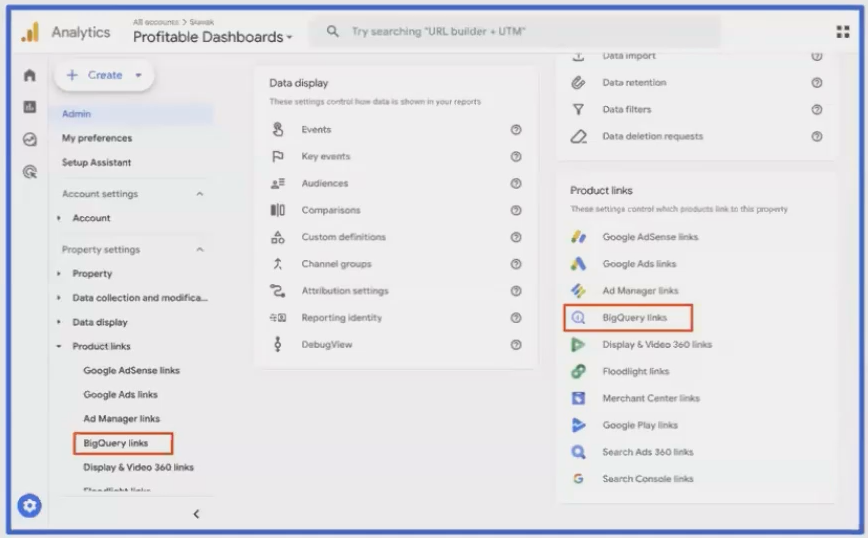
During setup, you'll need to select a Google Cloud project. This is where all associated costs (storage, processing) will be incurred. If you're setting this up for a client, it's best to use their Google Cloud project so billing is tied to their account.
Understanding Export Types: Daily Tables vs. Streaming
GA4 offers multiple export options, and understanding the differences is important for both cost and data availability:
Daily Export Tables:
Data is exported once per day, containing the previous day's events
Free for standard GA4 properties (but limited to 1 million events per day)
Tables are named in the format
events_YYYYMMDD
Streaming (Intraday) Export:
Events are sent to BigQuery almost in real-time
Incurs a small streaming insert cost (~$0.01 per 100,000 events)
No event limit since you're paying for the streaming
Data is stored in a temporary
events_intradaytable until it's moved to the permanent daily table
User Table Export:
A newer option that provides user-level aggregated data
Updated daily with user properties and metrics
For most reporting use cases, the daily export is sufficient. The streaming option is valuable if you need same-day data for time-sensitive analysis or monitoring.
The Advantages of Working with Raw GA4 Data
Working directly with raw GA4 data in BigQuery offers several significant advantages:
Unsampled Data Access: Unlike the GA4 interface or API which samples data for high-volume properties, BigQuery gives you access to 100% of your collected events.
No Data Deletion: GA4 has data retention limits (2-14 months depending on settings), but data exported to BigQuery remains available indefinitely (or until you choose to delete it).
Unlimited Analysis Flexibility: Create any metric or dimension combination imaginable, without being constrained by the GA4 interface.
Data Ownership: You control your data, including how long to store it and who can access it.
Data Integration: Combine your GA4 data with other sources like CRM data, offline conversions, or marketing campaigns for holistic analysis.
No API Quotas: Avoid the API limitations that can sometimes cause Looker Studio reports to fail.
The Challenges (and How to Overcome Them)
While the benefits are substantial, there are some challenges to be aware of:
Complex Data Schema: GA4's nested and repeated data structure in BigQuery is challenging even for experienced SQL developers.
SQL Skill Requirement: You'll need a solid understanding of SQL, including more advanced concepts like subqueries and window functions.
GA4-Specific Knowledge: Beyond SQL, you need to understand GA4's data model, fields, and various nuances (like how session IDs work).
Cost Considerations: While storage costs are minimal, inefficient queries can lead to higher processing costs, especially for high-volume properties.
Don't let these challenges discourage you! The remainder of this guide will help you navigate these complexities, and I'll point you to resources that can make the process much easier.
Real-World Impact: Why This Matters
To put this in perspective, consider what having raw GA4 data enables:
Create custom attribution models beyond the standard options in GA4
Analyze individual user journeys across multiple sessions and days
Calculate unique metrics like time to convert or revenue per user per channel
Identify underperforming content or features with precision
Build advanced machine learning models on your analytics data
For businesses serious about data-driven decision making, the GA4 BigQuery export isn't just a nice-to-have - it's an essential component of a modern analytics stack.
Frequently Asked Questions (FAQs)
How much does it cost to store GA4 data in BigQuery?
Storage costs are minimal - approximately $0.02 per GB per month for standard storage. For most websites, this translates to a few dollars monthly. The more significant costs come from querying the data, which depends on how efficiently your queries are written and how frequently they run.
Can I export historical data from GA4 to BigQuery?
No, GA4 cannot export historical data to BigQuery. The export only includes data from the point you enable the connection forward. This is why it's crucial to enable the export as soon as possible.
Is the GA4 BigQuery export available on the free GA4 properties?
Yes! Unlike Universal Analytics, where BigQuery export was limited to paid Analytics 360 customers, the GA4 BigQuery export is available to all properties, including free ones. The only limitation is the 1 million events per day cap on the free daily export.
Do I need to be a developer to use GA4 data in BigQuery?
While SQL knowledge is helpful, you don't need to be a developer. There are many pre-built queries and tools available that can help you get started. Additionally, the analysis skills you already have from working with GA4 will transfer - you're just learning a new way to access the same data.
How fresh is the data in BigQuery compared to the GA4 interface?
The standard daily export makes the previous day's data available in BigQuery within 24 hours. If you enable the streaming export, data appears in the intraday table within minutes, providing near real-time access.
In the next sections, we'll dive into understanding GA4's complex table schema, writing effective queries, and connecting your data to Looker Studio for visualization. But before we move on, remember the most important takeaway from this section: enable your GA4 BigQuery export today - your future self will thank you for the rich historical dataset you've preserved.
Note:
This post is based on a subject covered in the Looker Studio Masterclass Program. To learn more about Looker Studio Masterclass, click here.
