
BigQuery Tables vs Views vs Scheduled Queries: The Ultimate Performance Guide
After mastering the basics of SQL and learning how to transform data in BigQuery, the next crucial step is understanding how to store and manage your data efficiently. This is where tables, views, and scheduled queries come into play – three fundamental building blocks that can make or break your data pipeline's performance.
In this guide, we'll explore these three key concepts and help you choose the right approach for your specific needs. Whether you're building dashboards for stakeholders or setting up automated reporting, these tools will become your best friends in the BigQuery ecosystem.
Understanding the Problem: Speed vs. Freshness
Before diving into the specifics, let's understand the core challenge we face when connecting BigQuery to reporting tools like Looker Studio:
We want our data to be both:
Fast to access - Users shouldn't wait 30 seconds for a dashboard to load
Always up-to-date - Reports should reflect the latest information
This tension between speed and freshness is at the heart of how we choose between tables, views, and scheduled queries. Let's explore each option.
BigQuery Tables: Lightning-Fast but Static
Tables in BigQuery are exactly what they sound like – structured collections of rows and columns that physically store your data.
Types of Tables in BigQuery
BigQuery offers several types of tables:
Standard tables: Data stored directly within BigQuery
External tables: References to data stored elsewhere (like Google Sheets or Cloud Storage)
Creating a Table from Query Results
After running a complex analysis, you can save the results as a new table:
Run your SQL query
Click "Save Results"
Select "BigQuery Table"
Choose your destination dataset
Name your table
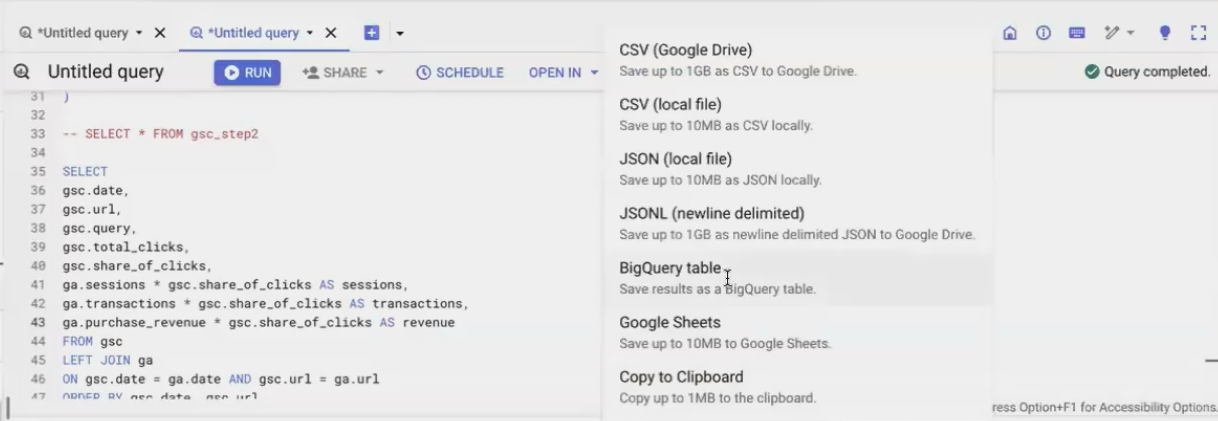
Selecting “BigQuery Table” to Create table
The Pros and Cons of Tables
Advantages:
Blazing fast performance - Tables are pre-computed and optimized for quick reads
Consistent query costs - Reading from a table typically costs less than re-executing complex queries
Disadvantages:
Static data - Tables are snapshots frozen in time
Manual updates required - You must manually rerun your query to refresh the data
When I checked the execution details of querying a table versus a view of identical data, the table returned results 3x faster and used 240x less computation resources. The difference becomes even more dramatic with larger datasets and more complex queries.
Views: Always Fresh but Potentially Slow
A view in BigQuery isn't a physical storage of data - it's a saved SQL query that runs every time you access it.
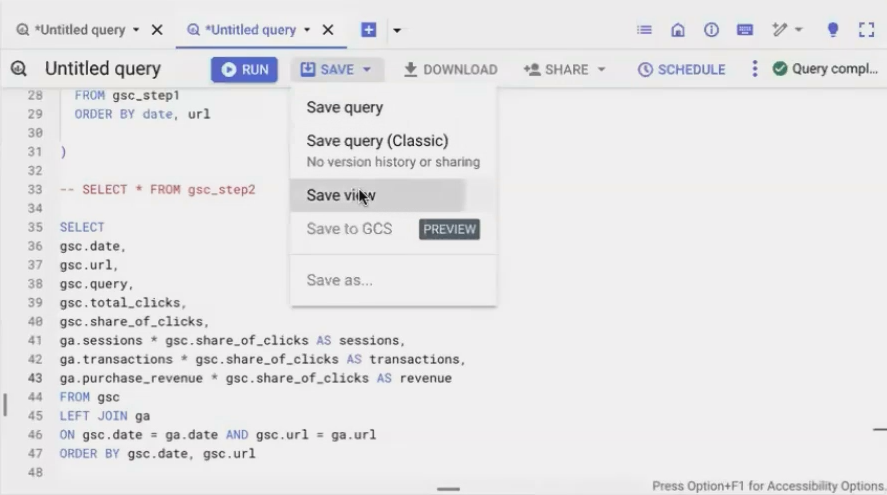
Creating a View
To create a view:
Write your SQL query
Click "Save" (not "Save Results")
Select "Save view"
Name your view and select the destination dataset
The Pros and Cons of Views
Advantages:
Always up-to-date - Views query the latest source data every time
Space efficient - No duplicate data storage required
Centralized logic - Update the view once to change all reports using it
Disadvantages:
Potentially slow: Complex views might take seconds or minutes to execute
Higher compute costs: Each view access runs the full underlying query
User experience issues: Slow-loading dashboards frustrate stakeholders
Scheduled Queries: The Best of Both Worlds
Scheduled queries solve the speed vs. freshness dilemma by automatically running your query on a schedule and saving the results to a table.
Setting Up a Scheduled Query
To create a scheduled query:
Write your SQL query
Click the "Schedule" button
Set your desired frequency (hourly, daily, etc.)
Specify a destination table
Crucially, select "Overwrite table" (not "Append")
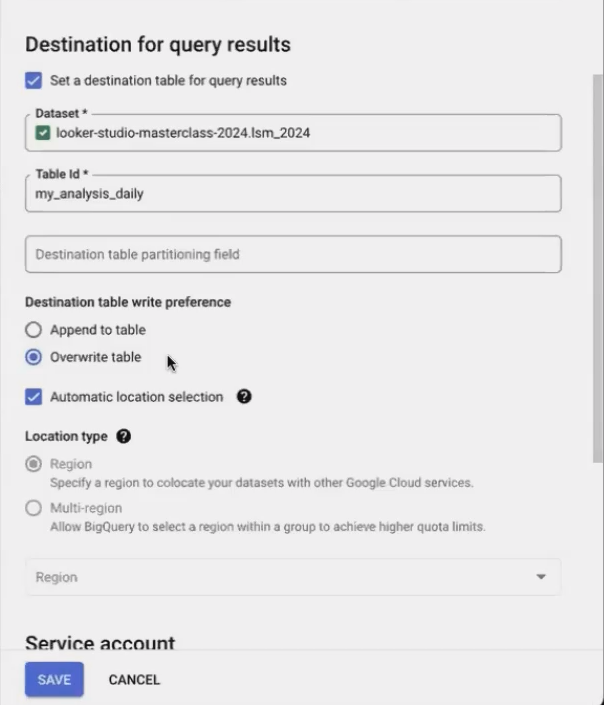
Setting up a scheduled query to run daily and automatically refresh your table
The Magic of Overwrite vs. Append
When configuring your scheduled query, you'll see two options:
Overwrite table: Completely replaces the table with fresh data (usually what you want)
Append to table: Adds new rows to the existing table (useful for event logs, but a common mistake for analytics queries)
If you accidentally choose "Append," your table will grow infinitely with duplicate data - I've seen this mistake cause tables to balloon to hundreds of gigabytes unnecessarily!
The Pros and Cons of Scheduled Queries
Advantages:
Fast access - Reports connect to a physical table, not a view
Automated freshness - Data updates on your defined schedule
Resource efficiency - Computationally expensive queries run only once, not for every dashboard user
Cost predictability - Query processing happens on a fixed schedule
Disadvantages:
Slight data delay - Data is only as fresh as your last scheduled run
Additional configuration - Requires setting up and monitoring the schedule
Making the Right Choice: Decision Framework
So how do you choose between tables, views, and scheduled queries? Consider these factors:
Use a Simple Table When:
Your data doesn't change (historical data)
You're doing a one-time analysis
You need maximum performance for a demo
Use a View When:
Real-time data is absolutely critical
Your query is relatively simple
Usage is infrequent or by a small number of users
You're still iterating on your query logic
Use a Scheduled Query When:
You need both good performance and regular updates
Multiple users or reports access the same data
Your transformations are complex and resource-intensive
A small delay (hours or a day) in data freshness is acceptable
Most production reporting environments benefit most from scheduled queries, refreshing tables daily or hourly depending on business needs.
Frequently Asked Questions (FAQs)
For Google Ads data, which has many views and tables in BigQuery, should I use the views or tables as my starting point?
If Google provides views as part of its data transfer service, these are typically a good starting point. These views often include helpful transformations while maintaining connections to the source data. Examine the view's underlying query to understand what it's doing, then build your own transformations on top as needed.
How do workflow orchestration tools like DBT fit into this picture when we can transfer data directly from Google Sheets to BigQuery?
While simple transfers like Sheets-to-BigQuery work well for basic needs, tools like DBT (data build tool) or Google's Dataform help manage complex transformation pipelines with many interdependent steps. They add version control, testing, documentation, and orchestration capabilities that become essential as your data operations grow. For simple use cases with 2-3 tables, scheduled queries are often sufficient.
What's your opinion on BigQuery's "Workflows" feature for pipeline creation?
BigQuery Workflows (powered by Dataform) is an excellent visual tool for creating and managing data pipelines. It provides much-needed visibility into how your data flows through various transformations. While I still use scheduled queries for existing projects, I'd strongly recommend starting new projects with Workflows/Dataform for better maintainability and transparency.
Is BigQuery appropriate for freelancers or just for in-house teams at large companies?
BigQuery is absolutely suitable for freelancers and small agencies! Many freelancers help clients set up BigQuery pipelines where the client owns the project (and pays the bills) while the freelancer builds the workflows. This approach solves data problems that are impossible to handle in Sheets alone. Even for small datasets, the reliability and automation capabilities make BigQuery worthwhile.
Understanding the differences between tables, views, and scheduled queries is essential for building efficient data pipelines in BigQuery. For most real-world scenarios, scheduled queries offer the ideal balance between performance and freshness.
By implementing the right approach for your specific needs, you'll create faster dashboards, reduce processing costs, and deliver more reliable insights to your stakeholders.
Remember, there's no one-size-fits-all solution - the best choice depends on your specific requirements for data freshness, query complexity, and user experience.
Note:
This post is based on a subject covered in the Looker Studio Masterclass Program. To learn more about Looker Studio Masterclass, click here.
