
Decoding GA4's BigQuery Schema: A Complete Guide to Unnesting & Querying Analytics Data
Google Analytics 4 (GA4) offers incredible power through its BigQuery export feature, giving analysts unfiltered access to raw event data. However, this power comes with complexity – GA4's data structure in BigQuery is fundamentally different from what most analysts are accustomed to working with.
If you've ever opened a GA4 export table in BigQuery and felt overwhelmed by fields like event_params, user_properties, and arrays nested within arrays, you're not alone. This complexity is why many analysts struggle to extract meaningful insights from their GA4 data despite having solid SQL skills.
In this guide, I'll demystify the GA4 schema, breaking down its unique structure and showing you how to navigate it effectively. By understanding how GA4 organizes data in BigQuery, you'll unlock the ability to build custom analyses that would be impossible through the GA4 interface alone.
Let's dive into the schema that powers your analytics data and learn how to make it work for you.
The Basics: How GA4 Tables Are Organized in BigQuery
Sharded Tables: Your Daily Data Containers
The first thing you'll notice when looking at your GA4 export in BigQuery is a table named something like events_(741). This isn't just one table – it's actually a collection of daily tables grouped together.
This structure, known as sharded tables, helps BigQuery manage large datasets efficiently. Each day's data gets its own table with a name that includes the date: events_YYYYMMDD (for example, events_20230111).
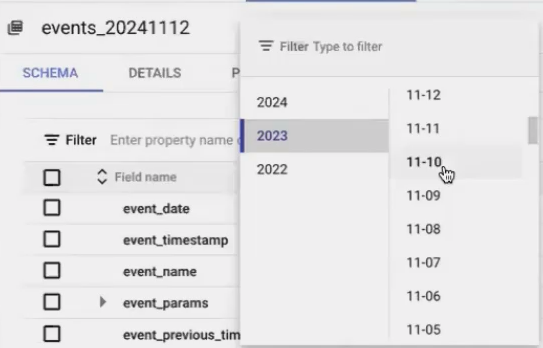
This sharding approach offers several benefits:
Faster queries when you only need to analyze specific date ranges
More cost-effective processing since you only query the days you need
Better performance for date-partitioned analyses
When querying these tables, you can either:
Target a specific day:
FROM analytics_XXXXX.events_20230111Use a wildcard to query multiple days:
FROM analytics_XXXXX.events_*
The wildcard approach is particularly powerful, allowing you to analyze your entire dataset without having to list each table individually.
GA4's Intraday Table: Real-time Data Access
In addition to the daily tables, you might notice an events_intraday_ table. This special table contains the current day's data that hasn't yet been processed into a permanent daily table.
The intraday table gets replaced each day, with its data folding into the permanent table for that day. This gives you near real-time access to your analytics data – something that wasn't possible with Universal Analytics exports.
The Nested Structure: Tables Within Tables
Why GA4 Uses a Nested Schema
Traditional database tables are flat – rows and columns, like a spreadsheet. GA4's BigQuery export, however, uses a nested and repeated structure, which means some columns contain entire tables within them.
This might seem unnecessarily complex, but there's a good reason. The GA4 data model is event-based and extremely flexible. Each event type can have different parameters, and those parameters can have different data types.
In a traditional flat table, you'd need a separate column for every possible parameter (potentially hundreds or thousands), with most cells empty for any given event. Instead, GA4 uses nesting to store only the relevant parameters for each event.
The Anatomy of event_params
The most important nested field is event_params. This column doesn't contain a single value – it contains an array of records, each with its own structure.
Let's visualize what one row in the GA4 table actually looks like:
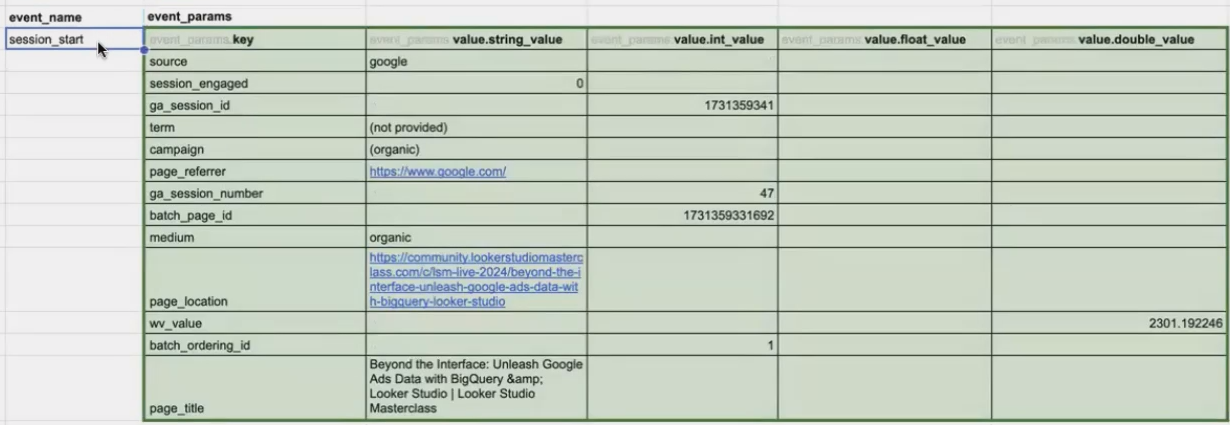
Within event_params, each parameter is a record with:
A
keyfield (the parameter name)A
valuefield, which itself contains multiple possible value types:string_valueint_valuefloat_valuedouble_value
For any given parameter, only one of these value types will be populated.
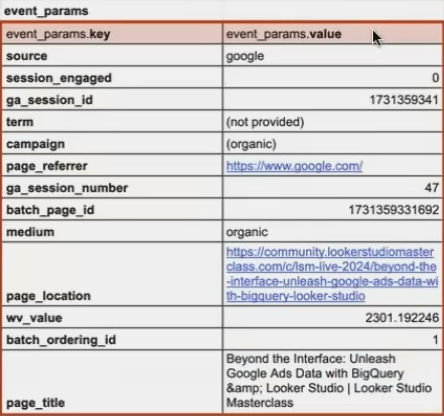
This structure exists because BigQuery requires each column to contain only one data type. Since event parameters can be strings, integers, or floats, Google created this nested structure to accommodate all possible types.
Other Important Nested Fields
While event_params is the most commonly used nested field, GA4 has several others:
user_properties: Contains user-level attributes (similar structure toevent_params)items: For e-commerce events, contains product detailsdevice: Information about the user's devicegeo: Geographic information about the user
Each of these fields follows a similar nested pattern, containing multiple values organized in a structured way.
Unnesting: How to Access Data in Nested Fields
The UNNEST Function: Your Key to GA4 Data
To work with nested data, we need to "flatten" it first. In BigQuery SQL, this is done with the UNNEST() function.
When you UNNEST a field like event_params, you're essentially telling BigQuery: "Treat this array as a temporary table that I can query from."
Let's look at a basic example of how to extract the page location for each event:
SELECT
  event_date,
  event_name,
  (SELECT value.string_value
   FROM UNNEST(event_params)
   WHERE key = 'page_location') AS page_location
FROM
  `project_id.analytics_XXXXX.events_20230111`
LIMIT 10;
The subquery here is saying: "From the array of parameters in event_params, find the one where the key is 'page_location' and give me its string_value."
Unnesting Multiple Parameters at Once
You can extract multiple parameters by adding separate subqueries for each one:
SELECT
  event_date,
  event_name,
  (SELECT value.string_value FROM UNNEST(event_params) WHERE key = 'page_location') AS page_location,
  (SELECT value.int_value FROM UNNEST(event_params) WHERE key = 'ga_session_id') AS session_id
FROM
  `project_id.analytics_XXXXX.events_20230111`
LIMIT 10;
This creates a nice, flat table that's much easier to work with than the original nested structure.
Exploring the Full event_params Table
Sometimes you want to see all parameters for an event to understand what's available. You can do this by cross-joining the main table with the unnested event_params:
SELECT
  event_date,
  event_name,
  ep.key AS parameter_name,
  ep.value.string_value,
  ep.value.int_value,
  ep.value.float_value,
  ep.value.double_value
FROM
  `project_id.analytics_XXXXX.events_20230111` e,
  UNNEST(e.event_params) AS ep
LIMIT 100;
This query will duplicate each event row for every parameter it has, showing you the complete contents of the event_params array in a flattened format.
Working with Session and User Identifiers
Creating a Truly Unique Session ID
One nuance of GA4's schema is that ga_session_id is actually a timestamp representing when the session started. For high-traffic sites, multiple users could start sessions at the exact same millisecond, resulting in identical session IDs.
To create a truly unique session identifier, it's best practice to combine user_pseudo_id with ga_session_id:
SELECT
  event_date,
  event_name,
  user_pseudo_id,
  (SELECT value.int_value FROM UNNEST(event_params) WHERE key = 'ga_session_id') AS session_id,
  CONCAT(
    user_pseudo_id,
    '_',
    (SELECT CAST(value.int_value AS STRING) FROM UNNEST(event_params) WHERE key = 'ga_session_id')
  ) AS unique_session_id
FROM
  `project_id.analytics_XXXXX.events_20230111`
LIMIT 10;
This unique_session_id can be used for accurate session-level analysis without risk of session collisions.
Understanding User Identification in GA4
GA4 uses several identifiers for users:
user_pseudo_id: A device/browser identifier created by GA4, always presentuser_id: A custom identifier you can set (via the User ID feature), only present for authenticated users
For comprehensive user analysis, you'll often need to work with both, using user_id when available and falling back to user_pseudo_id otherwise.
Advanced Analysis Using Window Functions
With the structure understood, we can perform powerful analyses like identifying a user's first visit date across all their events:
SELECT
  event_date,
  event_name,
  user_pseudo_id,
  event_timestamp,
  MIN(event_timestamp) OVER (PARTITION BY user_pseudo_id) AS first_touch_timestamp
FROM
  `project_id.analytics_XXXXX.events_*`
LIMIT 1000;
This query uses a window function to calculate the minimum timestamp for each user across all events, effectively finding when they first interacted with your site.
Frequently Asked Questions (FAQs)
Why are some session IDs null in my GA4 data?
Session IDs might be null for several reasons:
Events from users who haven't consented to analytics cookies (when Consent Mode is enabled)
Bot traffic that GA4 doesn't recognize as a valid session
Implementation issues where the session parameter isn't being properly set
Always check for nulls when working with session IDs to ensure your analyses are complete.
How do I query data across multiple days?
Use the wildcard syntax in your FROM clause:
FROM `project_id.analytics_XXXXX.events_*`To limit to a specific date range, add a WHERE clause:
WHERE _TABLE_SUFFIX BETWEEN '20230101' AND '20230131'Why is the GA4 schema so much more complex than Universal Analytics?
GA4's complex schema reflects its flexibility. Unlike Universal Analytics' fixed hit types, GA4 allows unlimited custom events and parameters. The nested structure enables this flexibility while keeping the data storage efficient.
Can I create a flattened view for easier querying?
Yes, you can create a BigQuery VIEW that unnests the commonly used parameters:
CREATE OR REPLACE VIEW `project_id.analytics_XXXXX.flattened_events` AS
SELECT
  event_date,
  event_name,
  user_pseudo_id,
  (SELECT value.string_value FROM UNNEST(event_params) WHERE key = 'page_location') AS page_location,
  -- Add more parameters as needed
FROM
  `project_id.analytics_XXXXX.events_*`
However, for production reporting, it's better to create scheduled queries that materialize this data into tables for better performance.
Understanding GA4's table schema in BigQuery is the foundation for unlocking its analytical potential. While the nested structure initially seems daunting, it actually provides remarkable flexibility once you learn how to work with it.
By mastering the UNNEST function and learning how to navigate GA4's complex schema, you open up possibilities far beyond what's available in the standard GA4 interface:
Build custom attribution models
Create user journey analyses across multiple sessions
Develop advanced segmentation based on sequential behaviors
Combine GA4 data with CRM, ad platform, or other business data
Remember, the schema's complexity exists to serve GA4's flexibility. Once you understand how to work with it, that same complexity becomes your analytical advantage.
In the next part of this series, we'll explore how to optimize your GA4 queries and connect them effectively to Looker Studio for powerful, efficient reporting.
Note:
This post is based on a subject covered in the Looker Studio Masterclass Program. To learn more about Looker Studio Masterclass, click here.
