
Looker Studio Version History: Your Complete Guide to Report Backups & Recovery
Ever made a change to a report and immediately regretted it? Or had a team member make "improvements" that weren't quite what you expected? In the world of data visualization, mistakes happen but with Looker Studio's version history feature, they don't have to be permanent.
Version history acts as your dashboard time machine, automatically saving snapshots of your work and allowing you to jump back to previous states when needed. This powerful but often overlooked feature can save you hours of work and prevent countless headaches.
Let's explore how version history works in Looker Studio and how you can use it to work more confidently.
The Safety Net: Understanding Version History
Looker Studio automatically records changes made to your reports and data sources. This means every significant edit (whether you're adjusting a chart, adding a filter, or completely redesigning a page) is preserved in the system.
Think of version history as an invisible safety net that's always there, ready to catch you if you fall. It works silently in the background, requiring no setup or maintenance on your part.
Key Benefits of Version History
Protection against mistakes: Accidentally deleted something important? No problem.
Accountability in team environments: See who made what changes and when.
Design evolution tracking: Compare how your reports have evolved over time.
A/B testing support: Try different approaches and easily revert if needed.
Accessing Report Version History
Viewing your report's history is straightforward:
Open your report in Edit mode
Navigate to File > Version History > See version history
This opens a special view where your report's entire evolution is displayed on a timeline.
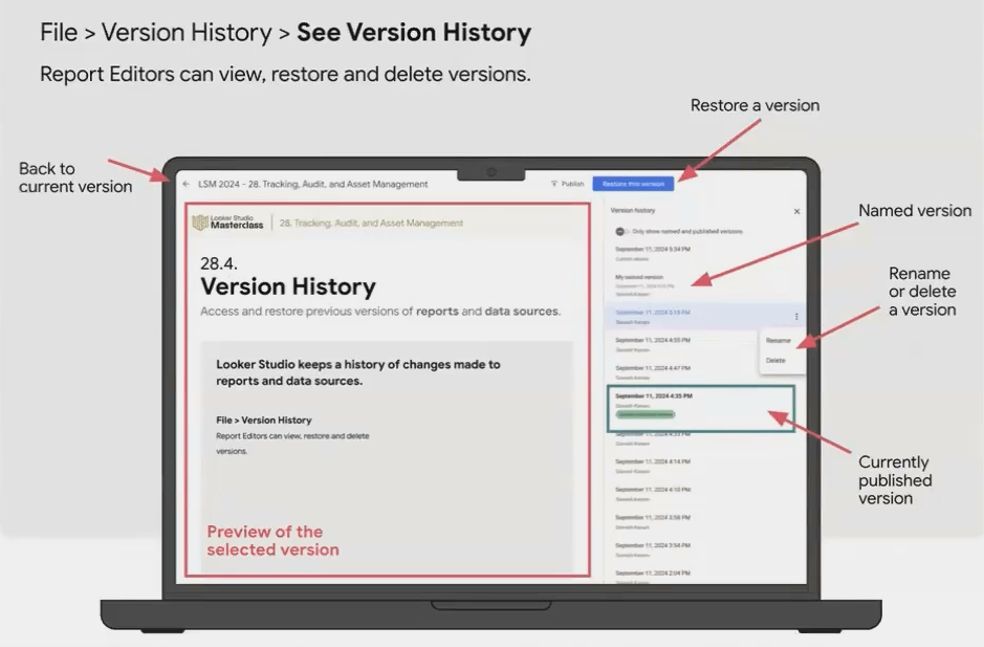
The Version History screen shows all saved versions, including automatic saves and named versions.
In this view, you'll see:
A list of saved versions with timestamps
The name of the user who made each change
Any custom version names you've added
The option to preview or restore any version
Naming Important Versions
By default, Looker Studio assigns generic names to versions (like "Edited 2 hours ago"). But for significant milestones, you can add custom names:
Go to File > Version History > Name current version
Enter a descriptive name like "Client Feedback Round 2" or "Q2 Design Update"
This simple practice makes it much easier to find important versions later when you need them.
Restoring Previous Versions
Found a version you want to go back to? Restoring it is simple:
In the Version History view, click on the version you want to restore
Preview it to make sure it's the right one
Click the Restore this version button
When you restore a version, that version becomes the current version of your report. It's important to note that this doesn't delete any later versions, they remain in your history and can still be accessed if needed.
Version History for Data Sources
Data sources in Looker Studio also have version histories, but how you access them depends on the type:
Embedded Data Sources
Embedded data sources (those that exist only within a specific report) are tied to the report itself. Their history is part of the report's version history. When you restore a report version, any changes made to its embedded data sources will be reverted as well.
This includes changes like:
Field name modifications
Formula adjustments in calculated fields
Field type changes (e.g., changing from number to currency)
Reusable Data Sources
Reusable data sources (those that exist independently and can be used across multiple reports) have their own separate version history. To access it:
Go to your Looker Studio homepage
Click on the data source to open its editing interface
Click on Version history in the top-right corner
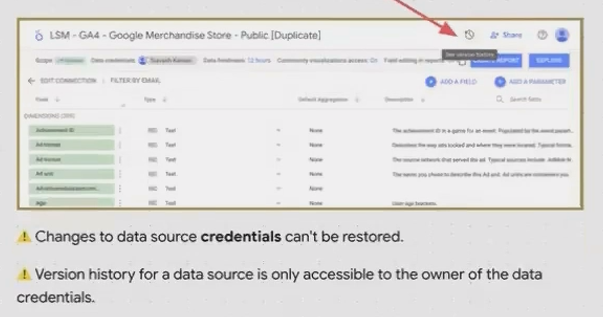
Reusable data sources have their own version history, accessible from the data source editing screen.
Important Limitations to Know
While powerful, version history in Looker Studio does have some limitations you should be aware of:
What Version History Can't Recover
Completely deleted reusable data sources: Once deleted, they cannot be restored through version history.
Revoked credentials: If you've removed access to the underlying data (like revoking BigQuery credentials), restoring an old version won't reinstate that access.
Versions beyond the retention period: While Looker Studio doesn't specify an exact retention period, very old versions may eventually become unavailable.
Version History and Report Duplication
When you make a copy of a report, the version history does not carry over to the new copy. The duplicate starts fresh, with no record of the original report's evolution. This is important to remember if you frequently create new reports based on existing templates.
Best Practices for Version History
To get the most out of version history in Looker Studio:
Name significant versions: Take a few seconds to name important milestones, especially before sharing with stakeholders or making major changes.
Check who made changes: In collaborative environments, version history helps you see which team member made specific edits.
Use it for experimentation: Knowing you can always go back encourages creative experimentation without fear of breaking something permanently.
Review periodically: Occasionally browse your version history to understand how your reports have evolved over time.
Export critical versions: For extremely important states, consider downloading a PDF as an additional backup.
Frequently Asked Questions (FAQs)
Does restoring a previous version of a report also revert changes made to its filters?
Yes. Filters are considered part of the report asset. Restoring a previous version will revert all filters to the state they were in at that point in time.
Is version history available for embedded data sources?
Yes. The history of an embedded data source is linked to the report it lives in. When you restore a report version, any changes to its embedded data sources will be reverted as well.
When I duplicate a report, does the version history get copied too?
No. When you make a copy of a report, the new copy starts with a fresh version history. The original report's evolution is not carried over.
How far back does version history go?
Looker Studio doesn't officially specify a retention period for version history. In practice, versions from many months ago are typically still available, but there's no guarantee for very old versions.
Can I delete specific versions from the history?
Yes, you can delete individual versions by clicking on the three-dot menu next to a version and selecting "Delete." This action cannot be undone, so use it carefully.
Version history in Looker Studio is like having an undo button for your entire reporting process. It gives you the confidence to make bold changes, experiment with new designs, and recover gracefully from mistakes.
By understanding how to access, manage, and restore versions effectively, you'll work more confidently and deliver more polished reports to your stakeholders. Whether you're a solo analyst or part of a large team, version history is an indispensable tool in your Looker Studio toolkit.
Remember: in data visualization as in life, it's always good to have a way back home if you wander too far off course. With version history, you'll never lose your way.
Note:
This post is based on a subject covered in the Looker Studio Masterclass Program. To learn more about Looker Studio Masterclass, click here.
