
Looker Studio Performance Optimization: 4 Strategies to Fix Slow Reports
Ever clicked on a Looker Studio report only to wait... and wait... and wait? You're not alone. Slow-loading reports are among the most common frustrations for both report creators and viewers. In this deep dive, we'll uncover what's really happening behind the scenes when your reports lag, and then walk through practical strategies to transform them from sluggish to lightning-fast.
Today, we're tackling two critical questions:
What factors truly impact your report's speed?
How can you strategically optimize performance without sacrificing functionality?
Let's break down the invisible barriers standing between you and snappy, responsive dashboards.
What Really Impacts Report Speed?
To fix a slow report, you first need to understand what's happening under the hood. When someone clicks on your Looker Studio report link, a complex sequence of operations begins for every single chart on the page.
The 10-Step Journey: From Click to Visualization
Each chart (whether a simple scorecard or a complex table) goes through these steps:
Chart Initiation: Looker Studio reads the chart settings (metrics, dimensions, filters)
Data Request: The chart asks its connected data source for information
Connector Engagement: The data source passes the request to the data connector (e.g., Google Analytics 4 connector)
API Query: The connector sends queries to the external platform's API
Wait Time: Looker Studio waits for the external API to respond (often the biggest bottleneck)
Data Reception: The connector receives the response data
Transformation: Calculations and custom fields are processed
Aggregation: Data is summarized as needed (e.g., summing daily values)
Data Blending: If used, data from multiple sources is joined together
Chart Rendering: The visual is created and styled with any formatting
The Multiplier Effect: Why More Charts Equal More Waiting
Here's a crucial insight: this entire 10-step process happens independently for every chart on your page. If you have 15 charts, you're essentially running 15 parallel processes, each potentially making multiple API calls.
For example, a single table showing comparison data with grand totals might generate up to four separate API requests to Google Analytics. Multiply that by several charts, and suddenly your report is making dozens of requests before it can fully load.
The math is simple but sobering:
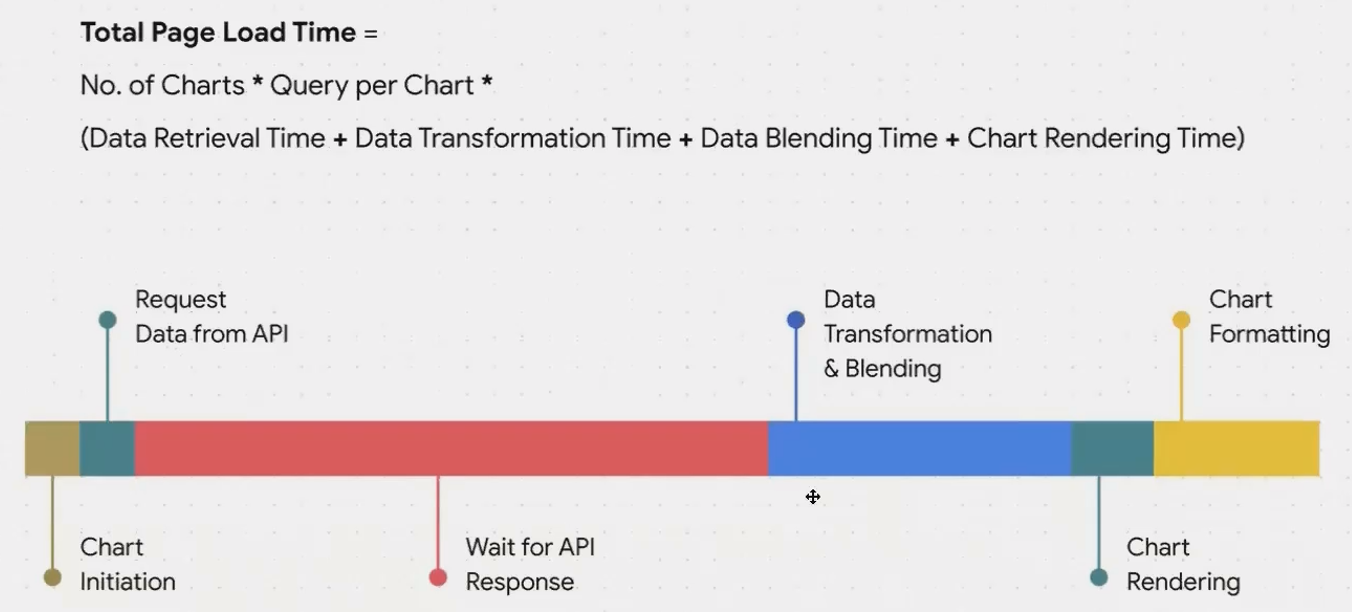
Where Your Time Is Really Spent
Based on extensive testing, here's where most reports get bogged down (from most to least impactful):
API Wait Time: Waiting for external services to respond (especially slower APIs like Facebook or LinkedIn)
Data Transformation & Blending: Complex calculations and joins performed within Looker Studio
Chart Rendering: Particularly for visually complex charts like maps with heat layers or tables with extensive conditional formatting
Understanding these bottlenecks is your first step toward strategic optimization.
Your Speed Optimization Playbook
Now that you know what's slowing you down, let's explore specific strategies to speed things up. Before diving in, remember that optimization always involves trade-offs between:
Speed: How quickly the report loads
Interactivity: How users can explore and filter the data
Freshness: How current the data is
The right balance depends on your specific use case and audience needs.
Strategy 1: Slash the Number of API Requests
This approach targets the biggest bottleneck and offers the most significant performance gains.
Break Reports into Multiple Pages
One of the most powerful yet underutilized features in Looker Studio is the humble page. Instead of cramming 20 charts onto a single dashboard, break your report into logical sections across multiple pages.
Why this works: Looker Studio only loads the charts on the currently viewed page. Other pages remain dormant until clicked, regardless of how many data sources they contain.
Pro tip: Create a clear navigation system with buttons or a table of contents to help users move between pages intuitively.
Replace Multiple Scorecards with a Single Table
A clever hack: Instead of using five separate scorecards (which generate five separate API requests), use a single table with no dimensions that displays your five metrics in a single row.
Use Optional Metrics Instead of Multiple Charts
Rather than creating three separate time series charts for Views, Sessions, and Conversions, create one chart with Views as the primary metric and add Sessions and Conversions as optional metrics.
This approach allows users to toggle between metrics while generating only one API request at a time. Just be sure to use compatible metrics with similar scales to avoid visualization issues.
Leverage Strategic Caching
Every data source in Looker Studio has a "Data Freshness" setting that controls how long results are cached. The default is 12 hours, but you can adjust this based on your needs:
For real-time monitoring: Set to shorter periods (4 hours or less)
For weekly or monthly reports: Consider 24 hours or longer
When a query's results are cached, subsequent identical queries (same filters, date ranges, etc.) retrieve data from Looker Studio's cache instead of hitting the API again.
Strategy 2: Accelerate Data Retrieval
If you still need multiple charts or can't reduce API requests further, focus on making each request faster.
Consider Warehouse Connectors
Third-party connectors like Supermetrics, Funnel.io, and Power My Analytics often act as data warehouses rather than live connectors. They extract data from platforms on a schedule and store it in their own optimized databases.
The advantage: When Looker Studio queries these connectors, it's hitting their fast, prepared warehouse instead of the original, slower API.
The trade-off: Your data is only as fresh as the last extraction (typically hourly or daily).
Query Only What You Need
For tables, set "Rows per page" to a manageable number like 20 or 50 instead of 500 or 1000. This way, Looker Studio only retrieves visible rows, loading additional data only when a user clicks to the next page.
Build Your Own Data Warehouse with BigQuery
For enterprise-level reporting, consider building your own data pipeline:
Extract data from source platforms into BigQuery
Transform and model the data in BigQuery
Connect Looker Studio directly to your BigQuery tables
BigQuery includes BI Engine, an in-memory analysis service that automatically caches frequently queried data, allowing for sub-second query responses.
Try the "Extract Data" Connector (Free BigQuery Alternative)
If setting up BigQuery seems daunting, try Looker Studio's built-in Extract Data connector:
Select any existing data source
Choose which dimensions and metrics to extract
Set a daily refresh schedule
Connect your charts to this extract instead of the original source
This feature essentially creates a free, lite version of a data warehouse within Looker Studio, leveraging BigQuery and BI Engine behind the scenes.
Limitation: Extracts are limited to 100MB of data.
Strategy 3: Streamline Data Transformation
Looker Studio is optimized for visualization, not data processing. Heavy calculations can significantly slow things down.
Transform Before Visualization
Whenever possible, perform data cleaning, joining, and complex calculations in your data warehouse (BigQuery, Google Sheets) before it reaches Looker Studio.
Examples of operations to avoid in Looker Studio if possible:
Complex REGEX extractions
Case statements with many conditions
Extensive string manipulations
Large data blends with multiple join keys
The Ratio Metrics Exception
One calculation that should remain in Looker Studio: ratio metrics like conversion rates or averages.
The wrong way: Pre-calculating conversion rates in your warehouse (e.g., storing daily CTR percentages)
The right way: Bring the raw components into Looker Studio (e.g., Clicks and Impressions) and create a calculated field: SUM(Clicks) / SUM(Impressions)
This ensures accurate aggregation across any date range or filter combination a user might select.
Optimize Your Blends
If you must blend data in Looker Studio:
Create multiple simple blends instead of one massive blend
Include only the dimensions and metrics needed for specific charts
Remove unnecessary dimensions that expand cardinality (e.g., if you don't need City in your final visualization, don't include it in the blend)
Fact check: Adding a single high-cardinality dimension to a blend can increase processing time exponentially. For example, adding City to a blend that already includes Country could increase the number of rows from hundreds to thousands, significantly impacting performance.
Strategy 4: Minimize Rendering Time
The final frontier of optimization is the rendering process itself.
Choose Simple Chart Types When Possible
A performance hierarchy of chart types (from fastest to slowest):
Scorecards and simple tables
Basic charts (bar, line, pie)
Tables with conditional formatting
Time series with multiple metrics
Google Maps (especially with heat layers or thousands of points)
Be Strategic with Conditional Formatting
Every conditional formatting rule requires additional processing. Use them when they add genuine analytical value, not just for aesthetics.
Optimize for Editors Too
If you're the one building reports, try these tricks for a smoother editing experience:
Refresh your browser tab frequently to clear the session cache
Use the "Pause updates" button while making multiple changes
Try zooming out to 25% when moving elements around (this sometimes makes the interface more responsive)
Frequently Asked Questions (FAQs)
How can I tell which parts of my report are causing performance issues?
Look for the blue loading bars at the top of your report. When you make a change (like selecting a filter), watch which charts take longest to refresh. Those are your optimization targets.
Why does Looker Studio default to "last 28 days" for GA4 but not for Google Sheets?
This happens because the GA4 connector is built for a predictable data structure that always includes dates. For Google Sheets, Looker Studio can't assume what date format you're using or even if you have dates at all, so it defaults to showing all available data.
Is there a limit to how much data Looker Studio can cache?
While there's no documented hard limit for standard caching, the Extract Data connector has a 100MB limit per extract. This suggests caching is designed for reasonable datasets, not massive ones.
What's the maximum number of charts I should have on a single page?
There's no magic number, but I generally recommend keeping it under 10-12 charts per page for optimal performance. The more complex your data sources and transformations, the fewer charts you should include per page.
Does BigQuery always make reports faster?
Not automatically. BigQuery is only faster if you follow best practices:
Connect to tables or materialized views, not complex SQL views
Use efficient data models with appropriate partitioning
Leverage BI Engine for frequently queried data
A poorly designed BigQuery setup can be just as slow as a direct API connection.
How can I optimize reports that need to be viewed by hundreds of users?
For high-traffic reports:
Set a longer data freshness period (12-24 hours)
Use limited, predefined filter options rather than open-ended filters
Break the report into multiple pages with focused content
Consider scheduling PDF exports for static viewing
Optimizing your Looker Studio reports isn't about applying every strategy blindly. It's about understanding the specific bottlenecks in your reporting workflow and making strategic trade-offs between speed, interactivity, and data freshness.
By targeting the most impactful areas first (reducing API requests and streamlining data retrieval) you can often achieve dramatic performance improvements without sacrificing functionality. Remember that for most business users, a fast report with slightly less fresh data is far more valuable than a slow report with real-time information.
Note:
This post is based on a subject covered in the Looker Studio Masterclass Program. To learn more about Looker Studio Masterclass, click here.
